REBEL DEZIGNS · TUTORIAL ARCHIVE
Pink Freak
An original Photoshop tutorial by René Kunert (giZZY), rebuilt from the preserved archive.
Materials Needed:
- Template by Missy at Divine Intentionz.
- Scrap kit called Be My Valentine by Fantasy Moments.
- Tube of your choice. I am using Elias Chatzoudis. This tube was purchased from MyPSPTubes.com but is now available at PSPTubesEmporium!
Open your template in Photoshop. Delete (or hide) the watermark layer.
You may resize your template at this point (making sure you set it to 72 DPI resolution)
Now lets trim down the number of layers in the template.
Delete all glitter layers:
- glittered pink freak
- glittered half circles
- glittered circle centre2
- glittered circle top right
- glittered circle bottom left
- glittered frame2
- glittered frame 1
- glittered circle left
- glittered circle right
- glittered centre circle
- and Raster 1 because it is a blank layer
Select the "circle top right" layer and right click. Merge down.
Select the "heart frame 2" layer and Merge down.
Select the "frame background 2" layer and Merge down.
Select the "square2" layer and Merge down.
Select the "circle right" layer and move it directly above the "circle left" layer. Now right click it and Merge down.
Select the "rectangle 2" layer and Merge down.
Now you should be left with A LOT less layers to work with.
Now we need to make a pattern.
Open a new 50 X 50 image. File > New.
Flood fill this with white and go to Filter > Noise > Add Noise: 40%
Now go to Edit > Define pattern.
You can now close this image.
Now I think it is time to start on our tag.
Select the "circle centre 1" layer, right click, choose Blending Options, and add these styles:
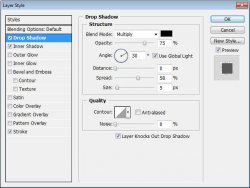
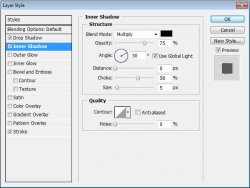
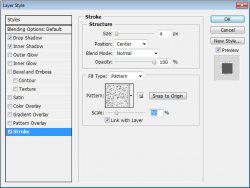
Add the same layer styles to the following layers:
- circle left
- heart frame 1
- circle bottom left
- circle centre 2
- half circles
- pink freak
Now for some pretty papers.
Select the "circle centre 1" layer again.
Open FM-BMValentine-Paper-4.jpg and drag it over to your tag using the move tool.
Start from here Resize it using Edit > Free Transform.
At the top of your screen you will see options to add numbers. Add the following:

Now click the check mark on the other side.
Now right click the layer and Create Clipping Mask.
Right click and Merge down.
Now Select the "circle left" layer.
Open FM-BMValentine-Paper-12
Repeat the same steps as highlighted above.
Select the "circle bottom left" layer.
Open FM-BMValentine-Paper-16
Repeat the same steps as highlighted above.
Select the "circle centre 2" layer.
Open FM-BMValentine-Paper-23
Repeat the same steps as highlighted above.
Select the "half circles" layer.
Open FM-BMValentine-Paper-24
Repeat the same steps as highlighted above.
Select the "pink freak" layer.
Open FM-BMValentine-Paper-27
Repeat the same steps as highlighted above.
Now we need to change the color of the "rectangle 1" layer
Right click that layer to bring up the blending options.
Add a Color Overlay.
Click on the box that has the red color in it. You are now able to sample colors from your tag. Simply click on a color directly from your tag. Now set the Blend Mode to Color.
Here is what you should have so far:
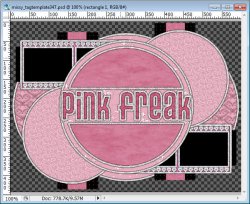
Now we need to add some elements to our tag.
Select the "heart frame 1" layer and add a new layer. Layer > New... > Layer
Set your foreground color to a color that best suits your tag.
Use a brush of your choice to place some decorations.
Set your foreground color to white and add a few more brushes to the same layer.
Now go to Filter > Noise > Add Noise: 15.
Now right click the layer, choose blending options, and add a drop shadow. Default is fine.
Select the "circle bottom left" layer.
Open FM-BmValentine-Element-66.png and place it in the center of your tag. Resize and rotate it as necessary. Edit > Free transform
Now add the same layer styles to it as mentioned at the beginning of this tutorial.
Select the "half circles" layer and open FM-BmValentine-Element-72.png
Place it in the center of the tag canvas and resize it to about 55%.
Give it a drop shadow, but put the distance at 0.
Select the "Pink Freak" layer.
Open FM-BmValentine-Element-25.png and place on your tag.
Go to Edit > Free Transform:

Now position it where it looks best.
Give it a drop shadow.
Open FM-BmValentine-Element-18.png and place it on your tag.
resize it as necessary and place it over the top of your first ribbon. Give it the same drop shadow.
Open FM-BmValentine-Element-42.png
Resize and place it as desired over the bows. Give it a drop shadow.
Now add your main tube.
I have used Alien Skin EyeCandy 5 Impact to add the perspective shadow to my main tube.
It is best to add your copyrights now so you don't forget.
If you want to use a closeup with your tag, you will need a few more steps.
Select the "circle bottom left" layer.
Add your closup.
Now Right click the thumbnail of the "heart frame 1" layer. This will select only the frame.
Make sure you have your closeup layer selected.
Go to Select > Modify > Expand: 2
Hit delete on your keyboard.
Now use your eraser tool to carefully erase the leftovers in the frame.
Create a new layer.
Use black and a round paintbrush to carefully paint around the outside of the frames to give the illusion of a shadow:
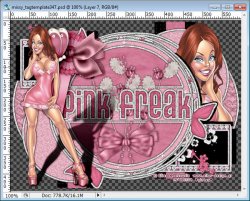
Now go to Filter > Blur > Gaussian Blur: 5
Now right click this shadow layer and Create Clipping Mask.
Now add any text or name that you wish and add these styles:
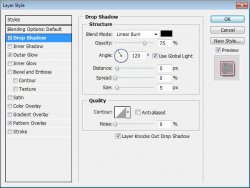
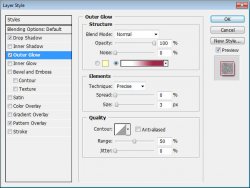
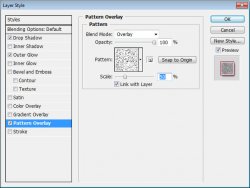
Now just save your image as a .png or .jpg and you are done!
And this is my result:

I hope you have enjoyed this tutorial! I would love to see your results.
Hosted by permission. Please link to this tutorial instead of redistributing it or its supplies.
Back to all tutorials