REBEL DEZIGNS · TUTORIAL ARCHIVE
Pleasure
An original Photoshop tutorial by René Kunert (giZZY), rebuilt from the preserved archive.


Materials Needed:
- Scrap kit from A Tagger's Scrap called Une Belle Vie Sampler
- Tube by the artist of your choice. I am using Barbara Jensen. Please do not use this image unless you have a license to do so. You may get a license via her site.
- Filter: Tramages > Pool Shadow (optional; for animation)
Open frame.png from the kit.
Duplicate the image and close the original.
Resize it as needed.
Use your selection wand to select the inside of the frame.
Create a new layer (Layer > New > Layer...)
Flood fill with white. (Edit > Fill)
Open a paper of choice and place it over the filled area.
Right click the paper layer and Create Clipping Mask.
Right click it again and Merge Down.
Move this layer below the frame layer by simply dragging it down in your layers pallet.
Open various other elements and arrange them similar to my example:
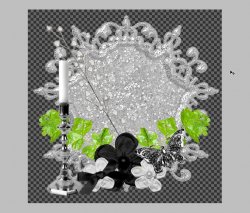
Right click your element and frame layers and select Blending Options.
Give your elements a drop shadow of choice.
Here is the setting I have used:
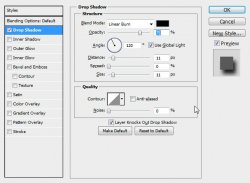
Select the frame layer.
Use your type tool to type out the word Precious at the top of your tag (or any other word you would like)
Give the word layer this style:
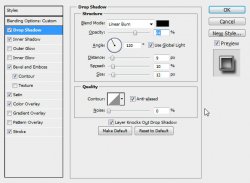
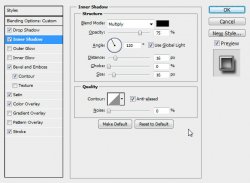
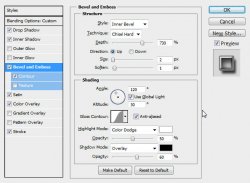
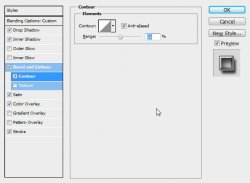
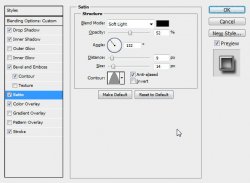
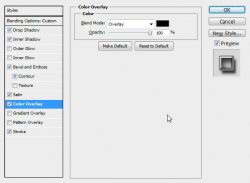
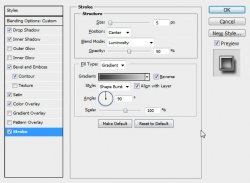
Now you should have something similar to this:
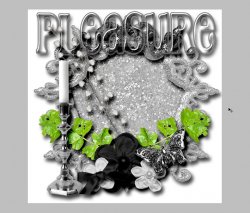
Now open your tube of choice.
Place it where desired.
Give it a drop shadow of choice.
Select the topmost layer and ADD COPYRIGHTS!
Add a name to your tag. We don't want any blanks

I have given the name layer the same layer style as the Pleasure text layer.
If you only want a static tag without animation, you may stop here. If you would like to add the animation, please proceed.
Prepare your work area for animation.
Animation Select your frame layer and duplicate it 3 times.
(total 4 layers)
Select your first frame:
Filter > Noise > Add Noise: 10 ; Gaussian ; Monochormatic
Filter > Tramages > Pool Shadow:
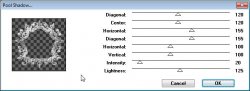
Select the next frame layer and apply these settings:
Filter > Noise > Add Noise: 10 ; Gaussian ; Monochormatic
Filter > Tramages > Pool Shadow:
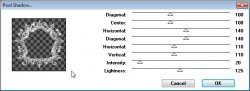
On the next frame layer:
Filter > Noise > Add Noise: 10 ; Gaussian ; Monochormatic
Filter > Tramages > Pool Shadow:
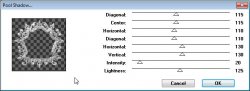
And the next:
Filter > Noise > Add Noise: 10 ; Gaussian ; Monochormatic
Filter > Tramages > Pool Shadow:
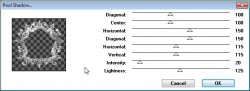
Hide all but the first frame layer.
Do you have your animation window open? If not, you should check out the link before this area.
Duplicate your animation frame by clicking the little paper icon at the bottom of your animation window.
Hide the first frame layer and unhide the second.
Duplicate the animation frame again.
Hide the second frame layer and unhide the third.
Duplicate the animation frame again.
Hide the third frame layer and unhide the last.
Now check out the links to see how to fix up your animation for saving.
Set your frame delay to 0.1 sec.
Now to save your animation.
And this is my result:
I hope you have enjoyed this tutorial! I would love to see your results.
Hosted by permission. Please link to this tutorial instead of redistributing it or its supplies.
Back to all tutorials