REBEL DEZIGNS · TUTORIAL ARCHIVE
Pride
An original Photoshop tutorial by René Kunert (giZZY), rebuilt from the preserved archive.
[


Materials Needed:
- Template by Me
- Scrap kit I Love USA by CrazyCarita
- Tubes artist of your choice. I am using Elias Chatzoudis. This tube was purchased from MyPSPTubes.com but is now available at PSPTubesEmporium!
- OPTIONAL: Fireworks animation also by Me
Open your template in Photoshop.
Select the "swirl" layer (in the layer pallet) and open paper8.jpg
Use the move tool to move it onto your canvas. Position it about center.
Right click the paper layer and Create Clipping Mask. WOOO works like magic!
Now select your "white" layer and open paper5.jpg
We need to make it lighter so it looks more" white" soooooo go to Image > Adjustments > Brightness and Contrast:
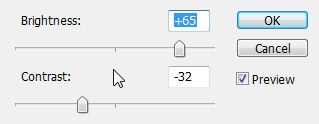
Now right click this layer and Create Clipping Mask.
Select the "red" layer and open paper3.jpg
Move it onto your tag and Create Clipping Mask again.
Select the "blue" layer and open paper1.jpg
Move it onto your tag and Create Clipping Mask again.
Select the "frame" layer and open paper8.jpg
Move it onto your tag and Create Clipping Mask again.
Duplicate this paper layer (right click > Duplicate Layer) and drag it above the "cupcake" layer in the layers pallet. Create Clipping Mask again.
Select the "icing" layer and open paper3.jpg
Move it onto your tag and Create Clipping Mask again.
Select your "base" layer and open paper4.jpg
Move it onto your tag and Create Clipping Mask again.
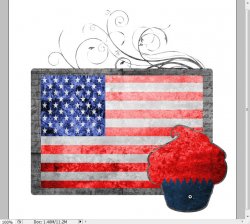
Now... I think that will be it for the papers. This is about what you should have so far:
Now for some layer styles.
Select the "swirl" layer and right click it. Choose Blending Options.
Now add these styles:
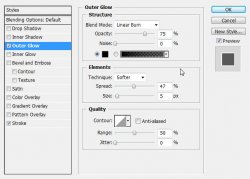
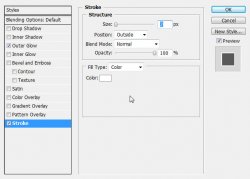
Add the same layer styles to the following layers:
- frame
- cupcake
Now select the paper layer that is clipped to the "frame" layer. (This should be Layer 6)
Open keychain.png from the kit and move it onto your tag.
Edit > Free Transform (look at the top of the screen and enter these values):

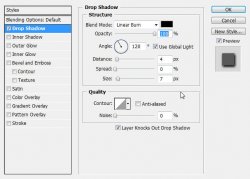
Give this layer a drop shadow of your liking. I have used this one:
Open bow2.png and move it onto your canvas.
Edit > Free Transform:

Apply the same drop shadow as the keychain layer.
Open wa1.png and move it onto your canvas.
Edit > Free Transform:

Apply the same drop shadow.
Now open your tube. Place it on your tag where desired and give it the same drop shadow.
Best to put your copyright information on now so you don't forget!
Open bead.png and place it on your canvas. Position it where desired and give it the same drop shadow as the other layers.
Now select the topmost layer in the layers pallet.
Add a name or wording of choice. (I have used The Doorman font)
Now add the same layer styles from the previous layers:
Open paper2.jpg and move it onto your tag.
Now Create Clipping Mask.
Now hide your background layer ("Layer 1") (click the eye that is beside the layer thumbnail in the layers pallet)
Now go to Image > Trim
Viola! Now there is no extra room around the tag.
Now is a good time to resize it if needed. Because the template is in vector format, you will not loose any quality of the lines.
Image > Image Size... Enter desired size.
If you don't want to attempt the animation, here is a good place to cut it short. Save as a .png or .jpg and you are good to go!
Now for the animation for those of you who are brave enough

Select the paper layer that is clipped to the "blue" layer. (this should be "Layer 5")
Open the fireworks.psd that I provided.
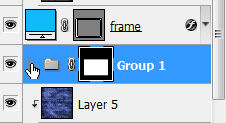
You will see in the layers pallet that the animation is already in a group. Grab the group FROM THE LAYERS PALLET and drag it onto your tag canvas. This is important so you get the whole group. Just click on the "Group 1" and draaaaaag it over to your tag and drop it directly onto your canvas. Easy enough, right?
Now move the group to position it where you like it best on the flag.
Now... here comes a tough part.
CTRL + Click on the THUMBNAIL of the "white" layer. This will create a selection out of the layer.
Now select the "Group 1" and go to Layer > Layer Mask > Reveal Selection.
Now we need to open our group so we can see the contents.
There is a little arrow beside the folder on the group's layer. Click that to expand the contents:
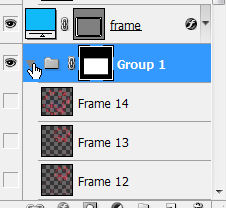
Give all these frames the exact same (default) drop shadow. (you do not need to unhide the layers to give them styles)
Make sure your animation window is open. Window > Animation
You will see that your first frame is already there.
Now Create a new frame by clicking on the little icon at the bottom of your animations window.
Remember the eye on the layers?
We need to hide the first frame layer.
Click the eye icon on the "frame 1" layer to hide it and UNhide the "frame 2" layer.
Duplicate the frame in the animation window.
Now we need to do this for all the frames.
Hide the "frame 2" layer and UNhide the "frame 3" layer.
Duplicate the frame in the animation window.
Hide the "frame 3" layer and UNhide the "frame 4" layer.
And so on and so on and so on... Until you get to "frame 14".
Now we want to set the delay of the frames higher than 0.
Select all your frames. (click first frame, then shift+click your last frame)
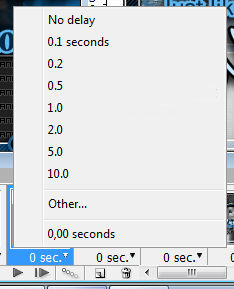
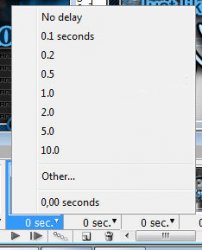
Click the arrow beside the number at the bottom of one of the frames. Set this number to 0.08 (there is an "Other" option) You may also play with this setting to get the effect you want.
To view your animation, simply click the play button.
Now to save your animation:
Go to File > Save for Web
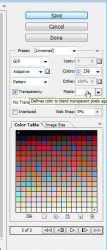
This will bring up a completely different save window than you are probably used to. Simply set everything like so:
Note that these settings are the ones that I use for the background of the posts of THIS forum.
That is it! All finished!! Simple... right...
And this is my result:
I hope you have enjoyed this tutorial! I would love to see your results.
Hosted by permission. Please link to this tutorial instead of redistributing it or its supplies.
Back to all tutorials