REBEL DEZIGNS · TUTORIAL ARCHIVE
Red Rocker
An original Photoshop tutorial by René Kunert (giZZY), rebuilt from the preserved archive.
Materials Needed:
- Template by Me
- Scrap addon by Gina called Wicked Intentions
- Tube by the artist of your choice. I am using Nils. This tube was purchased from MyPSPTubes.com but is now available at PSPTubesEmporium!
Open your template in Photoshop.
Image > Resize:
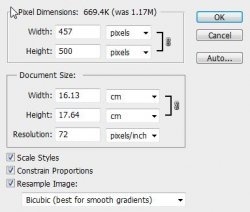
Select layer 1 and open Paper3 from the kit.
Use your move tool to move it onto your template.
Edit > Free Transform:

Just click the check mark when done.
Double click the layer's name in the layers pallet and rename it to Paper1.
Now right click the paper and Create Clipping Mask.
Select layer 3 and open Paper4. Use the same transform as the first paper layer.
Right click and Create Clipping Mask. Rename this layer Paper2.
Select layer 4 and open Paper4. Use the same transform and Create Clipping Mask. Rename this layer Paper3
Select layer 5.
Double click on the thumbnail image (the solid color) and enter this color: #a81611.
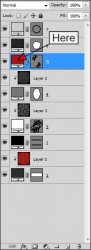
Select layer Z and open Paper6. Use the same transform and Create Clipping Mask. Rename this layer Paper4
It will look a little messy right now, but don't fret, we will fix it

Go to Image > Canvas Size:
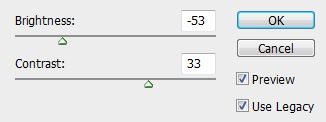
This will give us a little more room to work with.
Select the topmost layer of your tag. This should be the Paper4 layer.
Open Pearl Flower and Edit > Free Transform:

Rename this layer to Flower1
Duplicate this layer and move it over. Image > Adjustments > Desaturate. Rename this layer Flower2.
Duplicate this desaturated layer and move it over to the other side of the red flower.
Image > Adjustments > Brightness and Contrast:
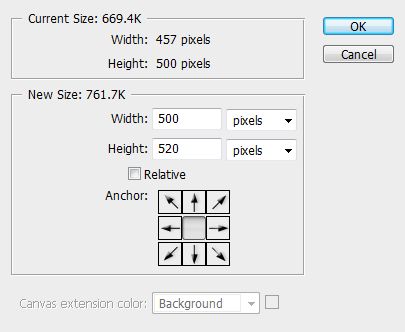
Rename this layer Fower3.
Now select your Flower1 layer and drag it up above the two gray flowers. Just drag an drop it in the layers pallet.
Make sure you are on the topmost layer and open Bow Charm.
Edit > Free Transform:

Rename this layer Bow.
Open Heart String and move it onto your tag. Edit > Free Transform:

Rename this layer to Bow String.
Ok now we have the basics of our tag complete. It should look something like this:
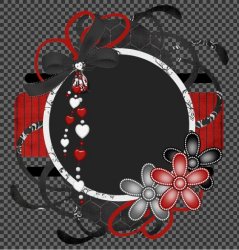
Now we can add some styles to the layers to give them more depth.
Right click the layers and click Blending Options to bring up the styles box.
Now apply this style to the following layers: 1, 2, 4, 5, Z.
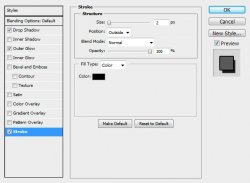
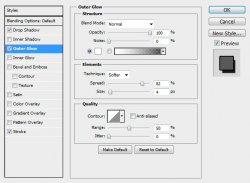
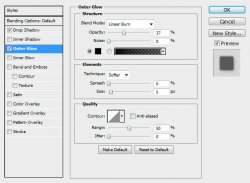
Now add this style to the three flower layers:
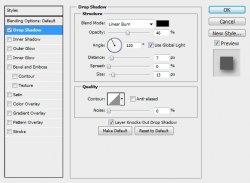
And the two bow layers:
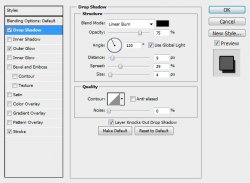
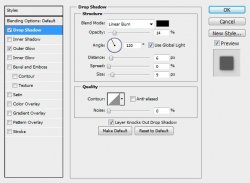
Now for layer 3:
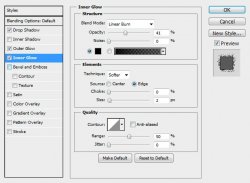
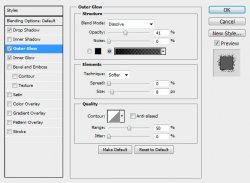
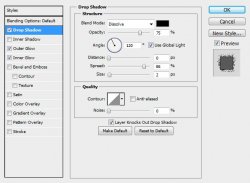
And now this is what you should have:
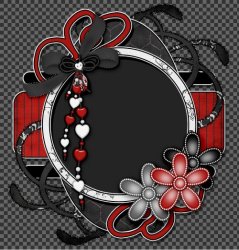
Ok we want to add a tube, right? Nope, didn't forget about it
Select layer 6 and open up your tube. A closeup works best for this part.
Move your tube onto the tag and then Create Clipping Mask. (right click)
Now just give it a drop shadow of choice. Set the blend mode of this layer to Overlay. This option can be found at the top of your layers pallet.
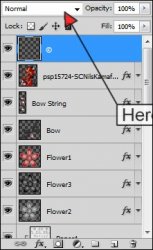
Now if you want to add the full size tube, select the topmost layer and move your tube onto your tag. resize and position where desired (free transform) and give it a drop shadow of choice.
Now get those copyrights on there! Don't want to leave those off.
Ok now add a name to the tag (or whatever words you want) and apply a layer style. I have reused the stroked layer style from before.
Now just save your image as a PNG and you are done! That was easy, huh?
And this is my result:

I hope you have enjoyed this tutorial! I would love to see your results.
Hosted by permission. Please link to this tutorial instead of redistributing it or its supplies.
Back to all tutorials