REBEL DEZIGNS · TUTORIAL ARCHIVE
Ribbons and Lace
An original Photoshop tutorial by René Kunert (giZZY), rebuilt from the preserved archive.
Materials Needed:
- Template by Me. Do not redistribute.
- Scrap kit by CrazyCarita called Pippa's Backyard. Was PTU, now FREE! Thank you Carita!!
- Tube by the artist of your choice, preferably one that includes a closeup. I am using Jose Cano. This tube was purchased from MyPSPTubes.com but is now available at PSPTubesEmporium!
Open your template in Photoshop.
Duplicate it (Image > Duplicate) and close the original. This saves from accidentally saving over the original template.
Delete the copyright layer. (right click > Duplicate Layer)
Select layer "1" and open paper1.jpg from the kit and use the Move tool to move it onto your canvas.
Position it about center and right click. Choose Create Clipping Mask.
Select layer "2" and open paper6.jpg
Move it onto the canvas, position it about center and Create Clipping Mask again.
Select layer "3" and move paper1 onto the canvas again and Create Clipping Mask.
Select layer "4" and move paper6 onto the canvas again and Create Clipping Mask.
Now you can close the two papers.
Select layer "5" and open paper2.jpg and move it onto your canvas. Position and Create Clipping Mask.
Select layer "6" and move the paper onto the canvas again. Position and Create Clipping Mask.
Close this paper.
Select layer "7" and open paper4.jpg and move it onto your canvas. Position and create clipping mask.
Now we want to cut down on the layers...
Each layer should have a paper clipped to it. You layer pallet should look like this:
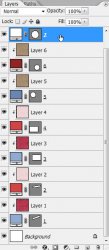
Now each of the number layers have a vector mask attached to it. Drag this mask onto the paper layer that is clipped to it.
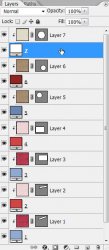
Now delete the numbered layers.
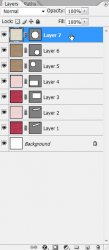
You should now be left with "Layer 1" through "Layer 7". I will be referring to these layers as such. So now would be a good time to rename your layers if they are not. (double click the name on the layer pallet to rename the layers)
Select Layer 1 and right click. Choose Blending Options and apply these layer styles:
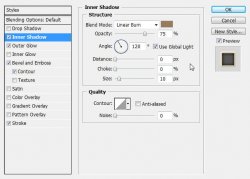
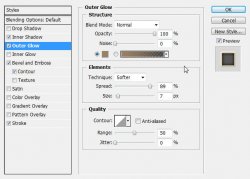
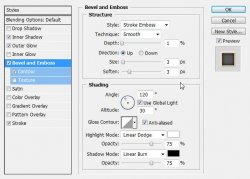
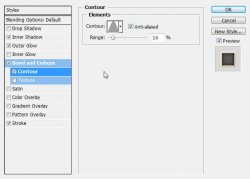
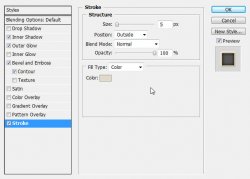
Apply the same styles to Layer 3.
Select Layer 2 and apply these styles:
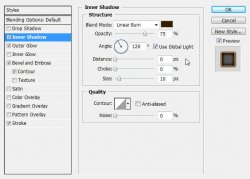
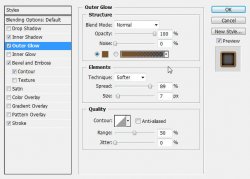
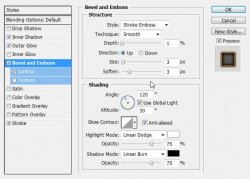
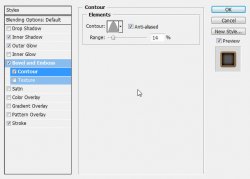
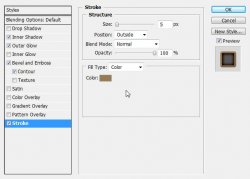
Apply the same styles to Layer 4.
Select Layer 5 and add these styles:
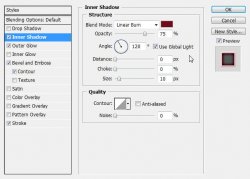
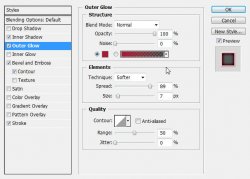
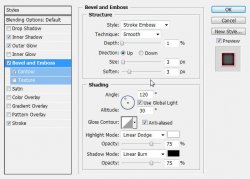
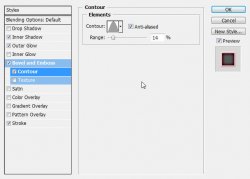
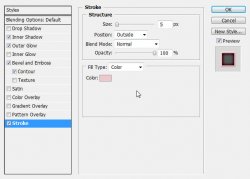
Apply the same styles to Layer 6.
Select Layer 7 and add these styles:
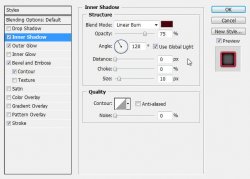
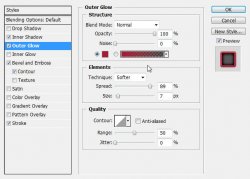
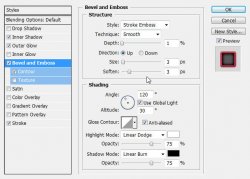
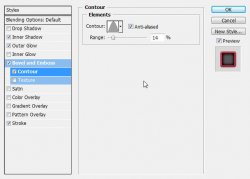
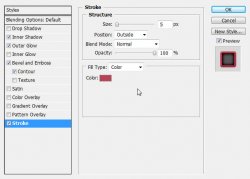
And now you should have something that looks like this:
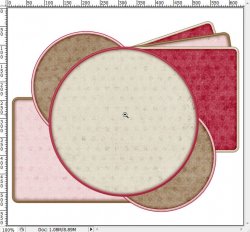
Select the topmost layer (Layer 7)
Open bow1.psd and move it onto your canvas.
Rename this layer "bow"
Edit > Free Transform (top of the screen):

Open the blending options and add a drop shadow of your choice.
Open ornament3.psd and move it onto your canvas.
Rename this layer to"ornament"
Edit > Transform > Rotate 90° CCW
Use your move tool to move it where desired. You may use my finished tag as a guide.
Give it a drop shadow.
Open ribbon2.psd and move it onto your canvas. Position it where desired. You do not need to give this layer a drop shadow because it already has one.
Open doodle2.psd and move it onto your canvas.
Rename this layer to "doodle"
Edit > Free Transform:

Apply the same drop shadow as your doodle layer.
Open ivy.psd and move it onto your canvas.
Rename this layer "ivy"
Edit > Free Transform:

Give it a drop shadow.
Open roses.psd and move it onto your canvas.
Rename this layer "roses"
Edit > Free Transform:

Give it a larger drop shadow than your other layers.
Select Layer 3 and open lace.psd
Move it onto your canvas and position as seen in my finished tag. Right click and Create Clipping Mask.
Select Layer 4
Move the lace onto the tag again.
Position it and Create Clipping Mask again.
Give both of these lace layers a small drop shadow.
Select Layer 7 and open your closeup tube. Position it over the circle and Create Clipping Mask.
Duplicate this layer.
Filter > Blur > Gaussian Blur: 5
Open the Blending Options and put the opacity to 50% and the Blend Mode to Overlay.
Select the "bow" layer and place your main tube. erase any portion of the tube that is sticking out from under the elements at the bottom.
Give your tube a drop shadow.
Now is a good time to add copyright information. Select the topmost layer and add the copyright.
Add a name to your tag. Give this layer your choice of layer styles.
Open a paper from the kit (your choice) and place it over the name.
Right click the paper and Create Clipping Mask.
Select > All
Image > Crop
Select > Deselect
Hide the background layer by clicking the little eye icon beside the layer's thumbnail in the layers pallet.
Image > Trim
This will trim off all the excess papers outside the tag.
And you are finished!
Save your image as a .png or a .jpg
Now sit back and revel in your work.
And this is my result:

I hope you have enjoyed this tutorial! I would love to see your results.
Hosted by permission. Please link to this tutorial instead of redistributing it or its supplies.
Back to all tutorials