REBEL DEZIGNS · TUTORIAL ARCHIVE
Ruffin It
An original Photoshop tutorial by René Kunert (giZZY), rebuilt from the preserved archive.
Materials Needed:
- Template made by Me.
- A few papers of choice. I am using some papers from my own kit called Summer Dream. It can be found here in the Donator's area of the forum.
- Tube by the artist of your choice. I am using the art of Acyd Reflux. Please do not use this image unless you have a license to do so. I am using the Puppy Pack 3.
Open your template in Photoshop.
Duplicate the image (Image > Duplicate...).
Close the original.
Delete the credits layer and the File > Save... to the location you would like to save your work.
Saving often eliminates some headaches later down the road.
Highlight the Grunge Mask layer and open a paper of choice. Place it on the tag and close the original.
(if you are using CS5, you can drag the paper directly onto the canvas to add the layer automatically, no need to close anything)
Right click the paper layer in the layers pallet and choose Create Clipping Mask.
Right click it again and Merge Down.
Repeat this process for all the layers on the template.
Do you have all your papers? Good. Let's move on to the fun stuff.
Right click the Oval 1 layer and choose Blending Options.
Add these styles to your layer (adjust the colors to match your tag):
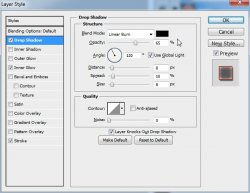
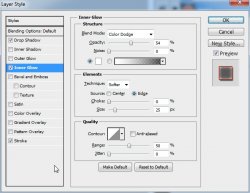
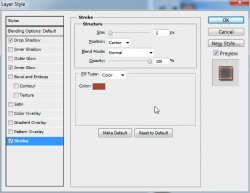
Add the same style to the Oval 2 layer.
Highlight your Frames layer, and add these styles:
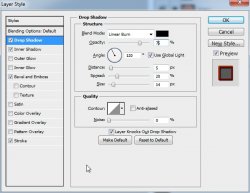
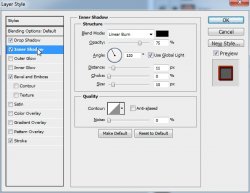
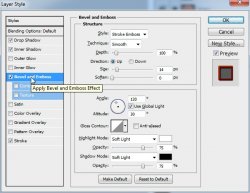
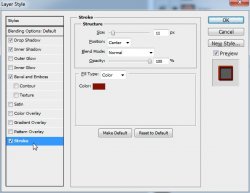
Now, open one of your images and place it over the left frame.
Right click and Create Clipping Mask.
Open another of your images and place it over the right frame.
Right click and Create Clipping Mask.
Open your third image and place it in the center of the tag.
Add a drop shadow of choice to the tube.
Add those copyrights! Don't want to forget those...
Add any text you wish to the tag. A snag phrase or name is ok, but no blank tags. Those are a nono.
Add any layer styles to the text. I am using a stroke, drop shadow, and gradient overlay.
So you want animation???
Ok well I guess that is fair enough...
If you only want a static tag without animation, you may stop here. If you would like to add the animation, please proceed.
Prepare your work area for animation.
Animation Reset your colors by pressing d on the keyboard. (this will make them black and white)
Highlight the Oval 2 layer.
Add a new layer and call it 'Ani 1' (Layer > New > Layer...)
Filter > Render > Clouds
Add another layer and call it 'Ani 2'
Filter > Render > Clouds
Add another layer and call it 'Ani 3'
Filter > Render > Clouds
Add another layer and call it 'Ani 4'
Filter > Render > Clouds
Now right click the layers in the layers pallet to open the Blending Options and set the blend mode to Soft Light and Opacity at 50%.
Now start with Ani 1 and right click each of the layers and Create Clipping Mask.
Use the eye icon that is beside the thumbnails of the layers pallet and hide Ani 2, Ani 3, and Ani 4.
In the animation window, your first frame is already there, no need to change it.
Duplicate the frame in the animation window by clicking on the folded paper icon at the bottom of the window.
Hide the Ani 1 layer and unhide the Ani 2 layer.
Duplicate the frame again.
Hide the Ani 2 layer and unhide the Ani 3 layer.
Duplicate the frame again.
Hide the Ani 3 layer and unhide the Ani 4 layer.
Set your frame delay to 0.1 sec.
Now to save your animation.
And this is my result:
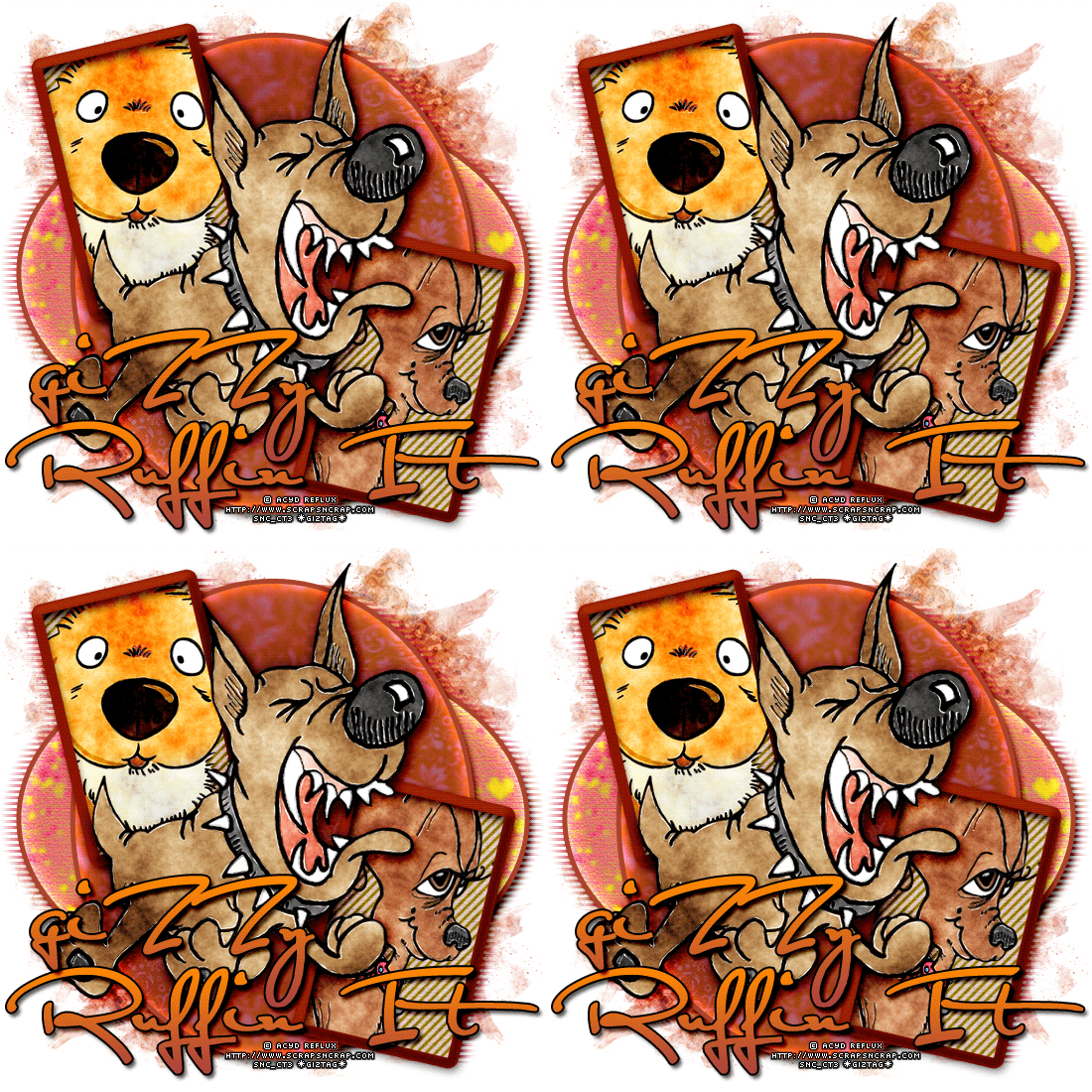
I hope you have enjoyed this tutorial! I would love to see your results.
♥♥♥
Hosted by permission. Please link to this tutorial instead of redistributing it or its supplies.
Back to all tutorials