REBEL DEZIGNS · TUTORIAL ARCHIVE
Sex and Candy
An original Photoshop tutorial by René Kunert (giZZY), rebuilt from the preserved archive.


Materials Needed:
- Mask of choice.
- Scrap kit by CrazyCarita called Sex and Candy (still in the New Releases of PTE)
- Tube by the artist of your choice. I am using the wonderful work of Barbara Jensen. Please do not use this image unless you have a license to do so. This tube can be found in Package A under the Full Packs category.
- Filter > Eyecandy 5 Nature > Fire
- Lots of patience and 4 pots of coffee.
First off we need to make a pattern for use later.
Open a new 100x100 px image.
Flood fill this image with dark red (or any other color you wish)
Filter > Noise > Add Noise > 25
Edit > Define Pattern: Name it
Close image.
Easy, huh?
Now to start the tag.
Prepare your mask.
After you have your mask isolated, right click on it in the layers pallet and choose Blending Options.
Select the Pattern Overlay in the left side.
Click on the pattern and find the pattern you made earlier.
Just click ok.
Now everything we do from here till I say will be inside a group.
This tutorial is to show you how to use layer groups to create certain effects.
Layer > New > Group
Name this group "Tag"
Layer > New > Layer
This will automatically insert the layer inside the group. If it doesn't, just drag it onto the group "Tag".
Now arrange some elements like this:
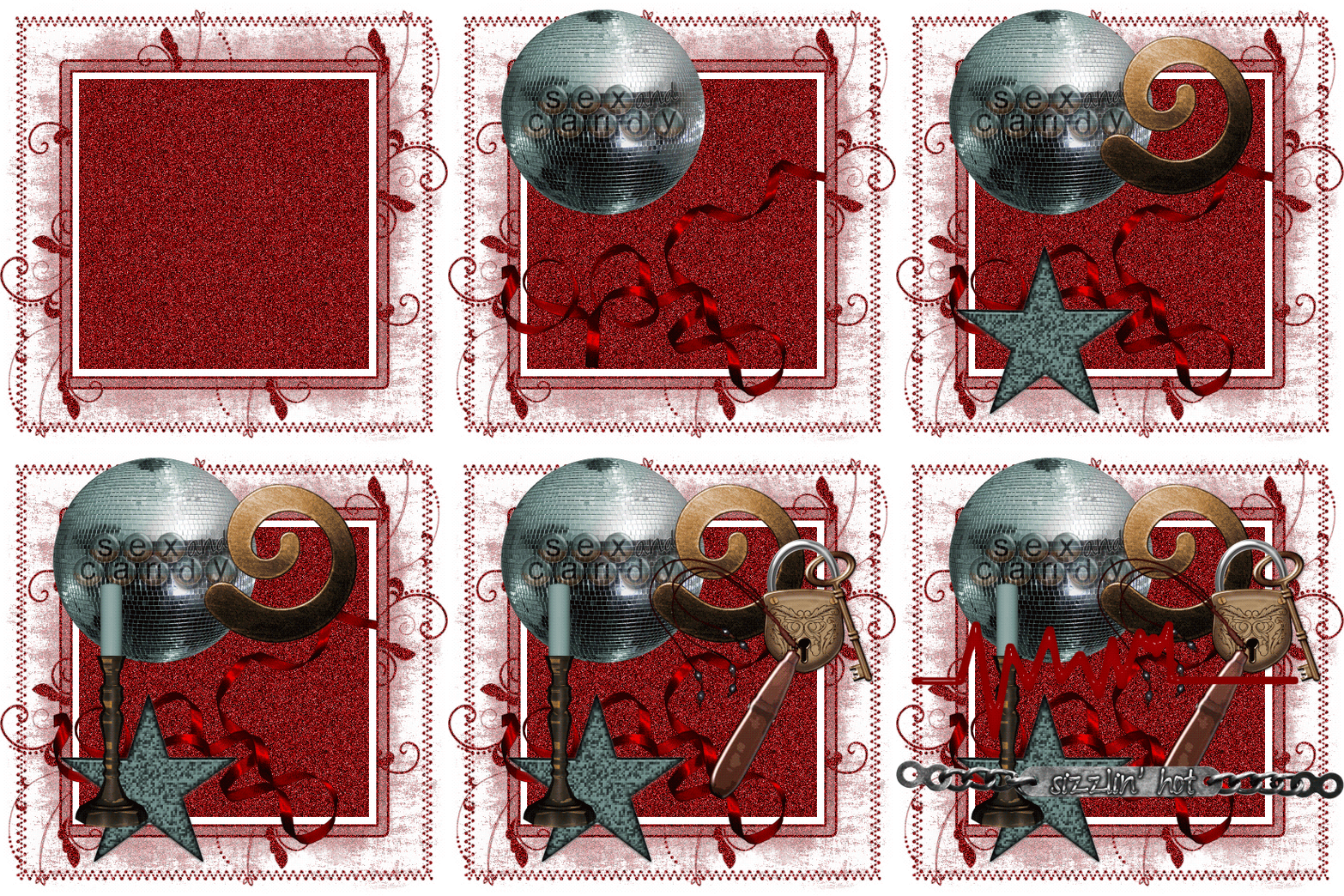
After you have arranged you elements, give them all a drop shadow of choice.
Right click the layer and choose Blending Options. The Drop Shadow option is first one on the left side.
Open a paper of your choice and place it on your tag.
In the layers pallet, drag the paper down below all of your elements, but make sure it stays inside the group.
Here is what I have so far:

Yeah, it doesn't look like much yet, but just wait

Highlight your Candle layer and make a tiny circular selection where the flame should go:

Layer > New > Layer... Name it Flame 1
Now go to Filter > Eyecandy 5 Nature > Fire and give these settings:
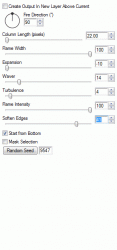
Layer > New > Layer... Flame 2
Repeat the filter but this time hit the Random Seed button.
Layer > New > Layer... Flame 3
Repeat the filter and hit the Random Seed button again.
Layer > New > Layer... Flame 4
Repeat the filter and hit the Random Seed button again.
Give each of the flame layers an outer glow.
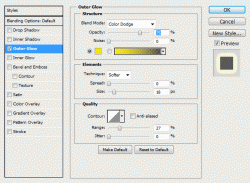
Hide the Flame 2, 3, and 4 by clicking the eye icon beside the layer in the layers pallet.
Now we are going to do some magic lol
Right click the THUMBNAIL of the mask layer (should be at the very bottom of your tag), and choose Select Pixels.
This should make a selection around your mask.
Highlight the Group "Tag"
Layer > Layer Mask > Reveal Selection
OMG! It's like MAGIC! (sorry, couldn't help myself)
Close (not hide) the group for a moment by clicking on the arrow on the group layer in the layers pallet.
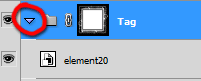
Open another couple of elements and place them on the tag and give then drop shadows.
Here is what I did:

Now add your tube and copyrights. Give your tube a drop shadow, also.
Add your name or other snaggable wordart. You can also add layer styles to your name/wordart if you wish. I added a stroke, gradient overlay and drop shadow.
If you only want a static tag, you can stop here and simply save as a PNG.
Prepare your work area for animation.
Animation You can open your group now so you can see inside it again.
Your first frame is already there, so duplicate it by clicking on the folded paper icon at the bottom of the animation window.
Hide the Flame 1 layer and Unhide the Flame 2 layer (eye icon in layers pallet)
Highlight the Mask layer and open the Blending Options.
Select the Pattern Overlay.
Hover over your tag and your cursor will turn into the Move Tool.
Drag it across the canvas to move the pattern.
Click OK.
Hide the Flame 2 layer and Unhide the Flame 3 layer (eye icon in layers pallet)
Highlight the Mask layer and open the Blending Options.
Move the pattern.
Click OK.
Hide the Flame 3 layer and Unhide the Flame 4 layer (eye icon in layers pallet)
Highlight the Mask layer and open the Blending Options.
Move the pattern.
Click OK.
You should now have 4 frames in your Animation window.
Set your frame delay to 0.1 sec.
Now to save your animation.
And this is my result:
I hope you have enjoyed this tutorial! I would love to see your results.
♥♥♥
Hosted by permission. Please link to this tutorial instead of redistributing it or its supplies.
Back to all tutorials