REBEL DEZIGNS · TUTORIAL ARCHIVE
Shake It
An original Photoshop tutorial by René Kunert (giZZY), rebuilt from the preserved archive.
Materials Needed:
- Scrap by Wilma4ever called My Home
- Tube by the artist of your choice. I am using Keith Garvey. This tube was purchased from MyPSPTubes.com but is now available at PSPTubesEmporium!
Open a new document. File > New: 550x550px at 72DPI
Open frame3 from the kit.
Use your move tool to move it onto your new canvas.
Edit > Free Transform:
(look at the top of your screen and enter these values)

Double click the name in the layers pallet and rename it to Frame1.
Grab your selection wand from your tools pallet and select the inside of your frame.
Select > Modify > Expand: 3px
Layer > New > Layer...
Name this layer Backing.
Edit > Fill: White
Now drag this layer under your Frame layer in the layers pallet.
Select > Deselect
Open paper3 from the kit and move it onto your tag.
Right click the layer in the layers pallet and choose Create Clipping Mask.
Right click again and Merge Down.
Select your Frame1 layer in the layers pallet.
Open Frame9 and move it onto your tag.
Use your move tool to position it about center.
Double click the name in the layers pallet and rename it to Frame2.
Open Flower6 and move it onto your tag.
Position it as shown in the finished tag using your Move tool.
Rename this layer to Flower1
Repeat for Flower7.
Rename this layer Flower2
Open Bow8 and move it onto your tag.
Edit > Free Transform:

Rename this layer to Bow.
Open Ribbon6 and move it onto your canvas.
Edit > Free Transform:

Rename this layer to Ribbon.
Add any other elements that you wish to the tag now.
Rename each layer to correspond with the element.
When you have all of your elements placed on your tag as desired, right click the top element and choose Blending Options.
Choose Drop Shadow from the side menu of the popup window.
Add this shadow:
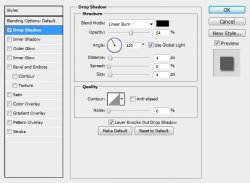
Apply this same drop shadow to each of the other element layers. You can change the distance and size of the shadow to give your tag more depth.
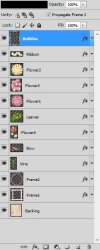
Here is how my layers pallet looks:
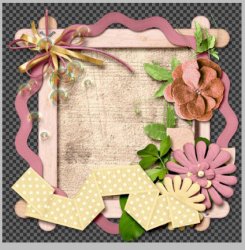
And here is the tag so far:
Now select the Frame2 layer and open your tube.
Place your tube on your tag.
Edit > Free Transform:
Whatever settings makes your tube choice fit best.
Erase any portions outside of the frame.
You may need to move the tube up a layer or two to make her sit just right inside the tag.
Place your tube on your canvas again and Edit > Transform > Flip Horizontal.
Position it on the opposite side of the tag and give them both a drop shadow. Preferably the same one you used on the elements.
Add your copyright information.
Now add a name to your tag. You can use any layer styles you would like on the name/text layer.
Now just save it as a .png or .jpg and that's it.

And this is my result:

I hope you have enjoyed this tutorial! I would love to see your results.
Hosted by permission. Please link to this tutorial instead of redistributing it or its supplies.
Back to all tutorials