REBEL DEZIGNS · TUTORIAL ARCHIVE
Snow Queen
An original Photoshop tutorial by René Kunert (giZZY), rebuilt from the preserved archive.


Materials Needed:
- Scrap by Heartbeatz Creationz called Snow Queen.
- Snow animation by me. Do not redistribute. (animation is slightly different from the tut due to lost supplies)
- Tube by the artist of your choice. I am using Barbara Jensen. Please do not use this image unless you have a license to do so.
- Filter: Mura's Copies (to save time)
Open a new blank canvas. I have used 700X550 pixels. This can always be trimmed down and resized later. (before the copyrights of course)
Open a paper of choice and place it on your canvas.
Edit > Free Transform:

Now open Element39 from the kit and place in the center of your canvas.
Use your elliptical selection tool to select the center portion of the frame element:
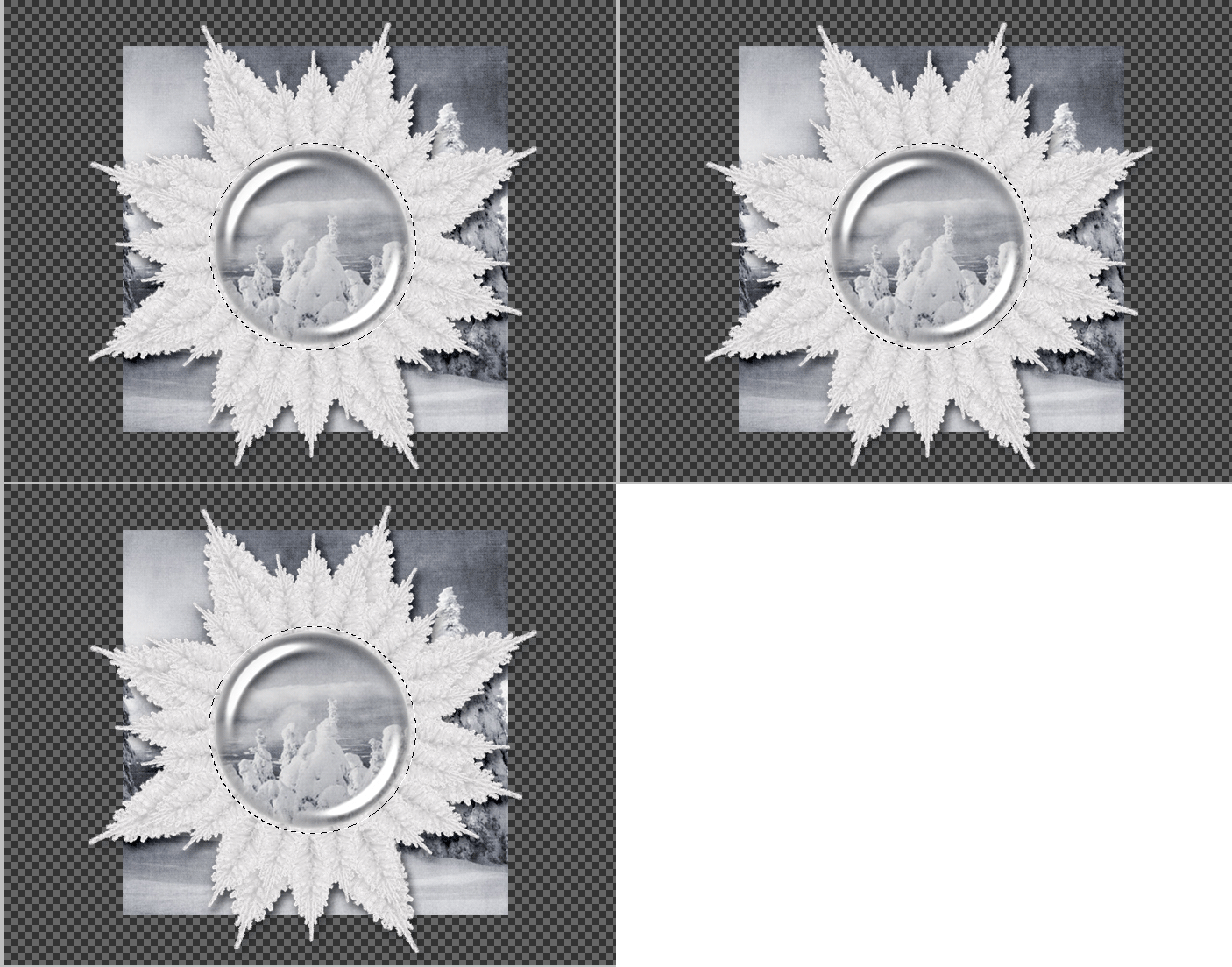
Select your paper layer and Go to Layer > Layer Mask > Reveal Selection.
Select your frame element again and open your choice of elements and place them on your canvas.
Here is the arrangement that I have chosen:
Element25
Element24
Element27
Element28
Element15
Elemtent65
It would be good to name the layers to correspond with the elements. I will be referring to them by those names.
Arranged like so:
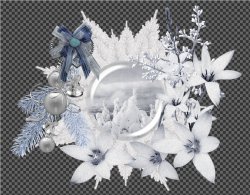
Add a drop shadow to all your elements. These are the settings I have used:
Blend Mode: Linear Burn
Angle: 120
Distance: 8
Choke: 0
Size: 10
Now select the Element27 layer and create a new group.
Layer > New > Group...
Open your tube and place it in the group.
Select the Group (the "layer" with the folder) and add a layer mask to it.
Layer > Layer Mask > Reveal All
Now make sure you have the layer mask selected. (it will have a border around it when clicked) and use your eraser tool to erase the part of the tube that is sticking out from under the flowers:
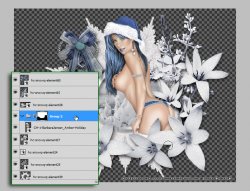
It is also a good idea to keep erasing some portions around the flowers to keep your drop shadow from appearing over the sides.
Resize your tag now if you want. I have kept mine at the larger size.
Add a drop shadow to your tube. A big soft shadow set at linear burn works best.
Add copyrights so you don't forget.
Add a name or other text you wish. Apply any layer styles you would like. I have used a stroke, gradient overlay, and a drop shadow.
Now on to the animation...
If you only want a static tag without animation, you may stop here. If you would like to add the animation, please proceed.
Prepare your work area for animation.
Animation Select the Element27 layer of your tag.
Open the animation that I have provided.
You will see that the snow is already in a group. Right click the group and select Duplicate Group.
You will have a popup window asking for the destination of your layer:
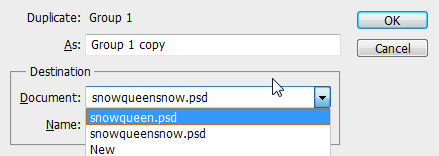
Find your tag in the dropdown box and click OK. You may close the original.
Back to the tag.
Now the snow is small so we will need to make it cover the whole tag.
Unhide all the layers.
Select the Frame 1 layer.
Filter > Mura's > Copies.
Select the Tiling Preset from the dropdown box at the bottom left of the window and then just click OK.
Select the Frame 2 layer and repeat the filter.
Do this to all frame layers.
Now add a layer mask to your layer GROUP. (should be Group 1 copy)
Use your eraser tool to erase all around the tag on the layer mask. Doing this will prevent you from having to erase parts from all the snow layers.
Now re-hide all the snow layers EXCEPT the Frame 1 layer.
Duplicate your animation frame by clicking on the little paper icon at the bottom of your animation window (explained further in the "Prepare your workspace" tutorial linked above).
Hide the Frame 1 layer and Unhide the Frame 2 layer.
Duplicate the frame again in the animation window.
Hide Frame 2 and Unhide Frame 3.
Repeat these steps for all 10 frame layers.
You should have 10 frames in your animation.
Set your frame delay to 0.1 sec.
Now to save your animation.
And this is my result:
I hope you have enjoyed this tutorial! I would love to see your results.
Hosted by permission. Please link to this tutorial instead of redistributing it or its supplies.
Back to all tutorials