REBEL DEZIGNS · TUTORIAL ARCHIVE
Snowy
An original Photoshop tutorial by René Kunert (giZZY), rebuilt from the preserved archive.


Materials Needed:
- Scrap kit by P&A Dezigns called Elegantly Christmas.
- Template by Me
- Tube by the artist of your choice. I am using Barbara Jensen. Please do not use this image unless you have a license to do so.
We will be working with vector layers in this tutorial. This helps when resizing your image without having quality loss.
Open your template in Photoshop.
Select the layer "1" and open a paper of your choice.
Place the paper on your canvas rename it to "Layer 1"
Now comes a hard part lol
Drag the Vector mask from your layer one onto the paper layer that you just renamed:
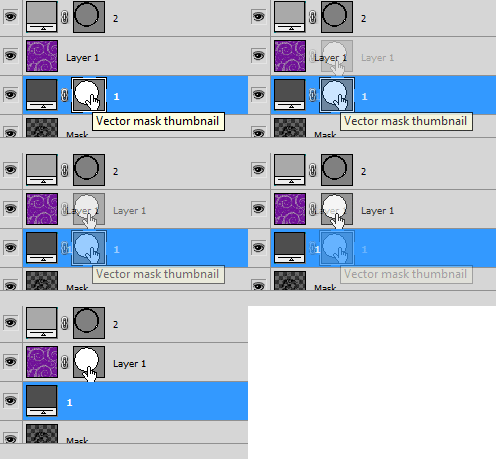
Now delete the layer "1"
Select layer "2" and open the corresponding paper. Rename it to "Layer 2" and move the vector mask from layer "2" onto the paper just as before.
Delete layer "2".
Repeat these steps for all the layers.
This is how your layers pallet should look:
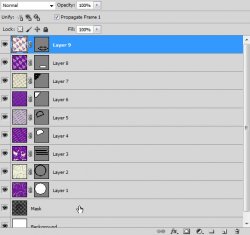
And this is the resulting image:
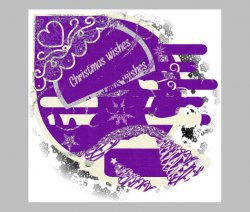
It doesn't look like much right now, so we need to add some layer styles to bring out the template more.
Select "Layer 2" and right click. Choose Blending Options.
Now add these styles in the popup window:
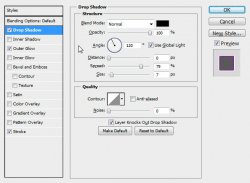
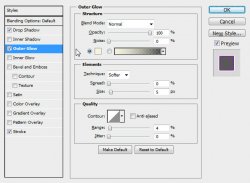
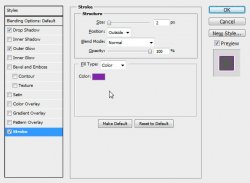
Add the same layer stlye to:
- Layer 3
- Layer 5
- Layer 7
- Layer 9
Now this is what you should have:
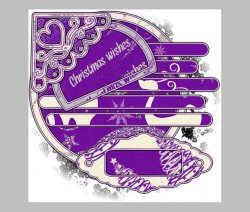
Now to add some elements.
Choose whatever elements you want and place them where they look the best. you can use my tag as a reference. (the only one that is necessary is the bells)
Be sure to add you favorite drop shadow to the elements.
DO NOT add a drop shadow to the bell yet, we will be adding animation to this layer.
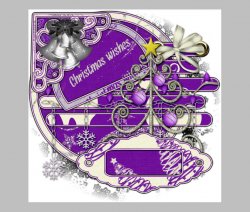
Now comes another tough part.
Create a new group on your canvas. (under "Layer 8")
Place your tube inside the group.
Click on the group and add a layer mask.
Layer > Layer Mask > Reveal All.
Now use your eraser tool on the mask to erase the parts of the tube that are hanging out the bottom.
Select your tube layer again and add a large soft drop shadow.
If need be, erase more of the mask to get rid of any drop shadow that is where it shouldn't be.
Select the topmost layer of the tag and add those copyrights. Best to do it now so you don't forget.
Now add a name to the tag and use the same layer style as before.
If you only want a static tag without animation, you may stop here. (be sure to add your shadow to the bell layer if stopping here) If you would like to add the animation, please proceed.
Prepare your work area for animation.
Animation Right click your bell layer and Conver to Smart Object. This will make sure there is not quality loss in our bell when distorting it.
Now add your drop shadow.
Now you can either use the Free Transform to move your bell, but I am going to use the Puppet Warp feature in Photoshop CS5.
Here is how that works:
Edit > Puppet Warp
This will put a mesh around your layer.
Place two pins on your layer:
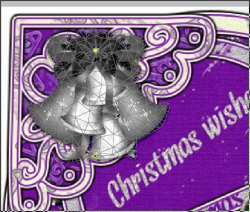
To add the pins, just click where you want them to go. Be sure not to drag them at all.
Then just click the check mark at the top right of your screen. This does not change this layer at all, but it prepares your layer for warping.
Duplicate this layer twice.
On the first copy, Edit > Puppet Warp. Move the bottom pin over to the right a bit. Then click the Check mark again.
On the second copy, Edit > Puppet Warp. Move the bottom pin over to the left a bit.
Then click the Check mark again.
Filter > Sharpen > Smart Sharpen: Amount: 45%, Radius: 1px
Do this on both copies.
Hide the copies using the eye icon on the layer pallet.
In your Animation window, duplicate your frame (explained in the link above).
Hide the original bell layer and UNhide the first copy.
Duplicate your frame again and hide the copy and UNhide the original.
Duplicate your frame again and hide the original and UNhide the second copy.
Set your frame delay to 0.2 sec.
Now to save your animation.
And this is my result:
I hope you have enjoyed this tutorial! I would love to see your results.
Hosted by permission. Please link to this tutorial instead of redistributing it or its supplies.
Back to all tutorials