REBEL DEZIGNS · TUTORIAL ARCHIVE
Sparkle and Shine
An original Photoshop tutorial by René Kunert (giZZY), rebuilt from the preserved archive.
Materials Needed:
- Supplies by Me. Please do not redistribute anything from the zip.
- Animation of choice. You may also use the animation I have supplied.
- Tube by the artist of your choice. I am using the wonderful work of Simona Candini. Please do not use this image unless you have a license to do so.
This tutorial is going to be a doozy, so grab some coffee and maybe a few snacks.
And remember to save often!!
Open a new 100x100 canvas.
Edit > Fill: 50% Gray
Filter > Noise > Add Noise: 20%, Gaussian, Monochromatic
Repeat the noise filter.
Edit > Define Pattern: Noisey glitter
Now you can close that image.
Open the template that is in the supplies zip.
Delete the credits layer.
Highlight the Shape layer.
Right click in the layers pallet and choose Blending Options.
Add these styles to your layer:
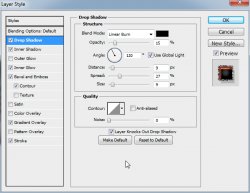
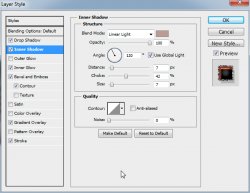
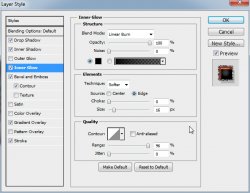
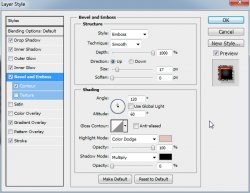
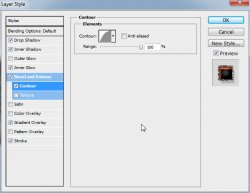
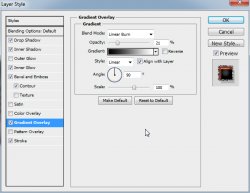
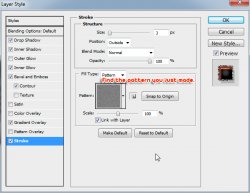
Open your tube of choice and place it over the shape.
Right click the tube and Create Clipping Mask.
This should now put your tube "inside" the shape.
If there is another element with the tube you are using, you can also use this layer as an element of your tag. The tube I am using has a flower on a separate layer so I am going to use it behind the name part of my tag.
Simply give it a drop shadow via the layer styles.
Add those copyrights now, so you don't forget.
Add a name to your tag.
Now lets give it a layer styles too, shall we?
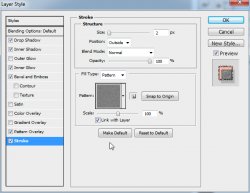
Layer > New > Layer: Border
Edit > Fill this layer with 50% Gray.
Now let's add some layer styles to it too, m'kay?
Remember that you can change the colors to whatever matches your tube.
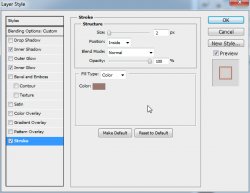
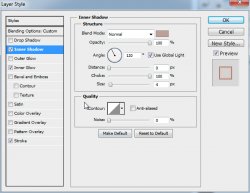
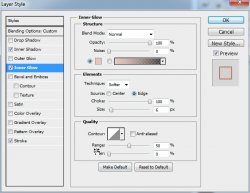
Now it would be best to put your copyright layer at the very top of your layers pallet. Simply drag and drop it at the top of the list.
Here is what we have so far:
Image coming soon
If you only want a static tag without animation, you may stop here. If you would like to add the animation, please proceed.
Prepare your work area for animation.
Animation Here comes a tricky part...
Highlight the Background layer of your tag.
Open the animation I provided, or you can use your own.
Select > All Layers
Layer > Group Layers
Right click the group in the layers pallet and Duplicate Group.
DO NOT JUST CLICK OK!
In the Document dropdown box, find the template you are working with and select it.
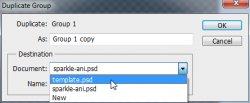
NOW click OK.
Now close the original animation.
Here is how your layers pallet should look on your tag:
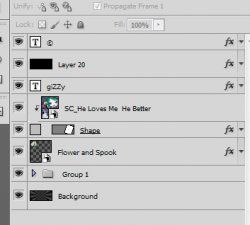
Now to your Animation Window.
In the top right corner there is an arrow.
Click on it and choose Make Frames From Layers.
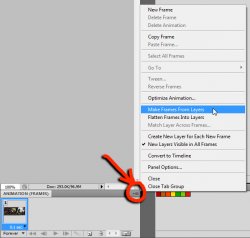
Wow... too many layers LOL
Don't worry, we are about to fix that.
Delete the first frame in the animations window.
Highlight it and click on the trashcan icon at the bottom of that window.
We have 25 frames in our animation, so we only want to keep those 25 frames.
Delete all other frames. (the frames without your animation showing in them)
Hmmm but where is our other elements, you ask?
Coming right up!
Highlight your first frame in your animaitons window again. This is VERY important. Do not try to do this from any other frame.
Now to your layers pallet.
Click the Eye Icon beside each of your tag layers.
(you gotta do this to the background layer twice, I have no idea why though lol)
DO NOT touch anything inside the group. Leave those exactly the way they are.
Press play on your animations window to see if your animation is the way you want it.
I think mine is just the way I want it, so I am going to save now.
Set your frame delay to 0.1 sec.
Now to save your animation.
And this is my result:
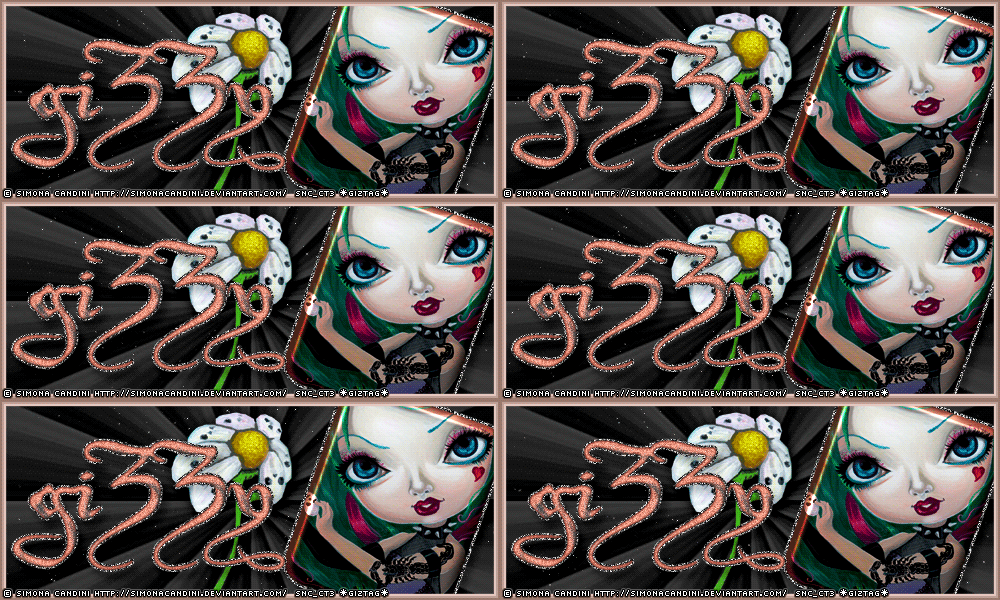
I hope you have enjoyed this tutorial! I would love to see your results.
♥♥♥
Hosted by permission. Please link to this tutorial instead of redistributing it or its supplies.
Back to all tutorials