REBEL DEZIGNS · TUTORIAL ARCHIVE
Sunny Day
An original Photoshop tutorial by René Kunert (giZZY), rebuilt from the preserved archive.
Materials Needed:
- Scrap Kit from Giane called Kit Déborah This is a full size kit. All item will need resized to 12% before using.
- Tube by the artist of your choice. I am using Edward Reed. This tube was purchased from MyPSPTubes.com but is now available at PSPTubesEmporium!
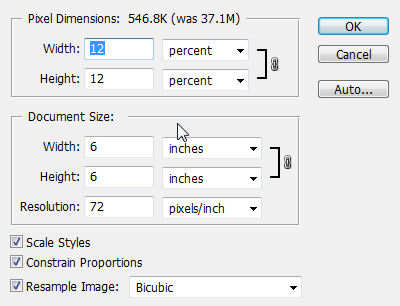
Open frame1 and go to Image > Resize:
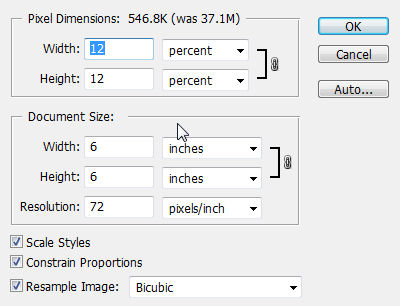
Now Edit > Free Transform:

Now we have an image the size our tag will be.
Duplicate this document: Image > Duplicate
Close the original without saving.
Use your selection wand and click the inside of the frame. This will select the inner portion, but we need to expand the selection just a little.
Select > Modify > Expand: 2
Now create a new layer: Layer > New > Layer... Name this layer "inside".
Edit > Fill: White
Select > Deselect
Now we need to move the layer down. Layer > Arrange > Send Backwards
Open paper12
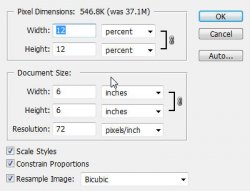
Resize the paper:
Now move it onto you tag canvas using your move tool. Close the original without saving.
Position it around center and right click. Choose Create Clipping Mask. Right click again and Merge Down.
Create a new layer group:
Layer > New > Group...
Name this group "elements"
Open flower7 and resize it:
Move it onto your canvas and position it around like shown:
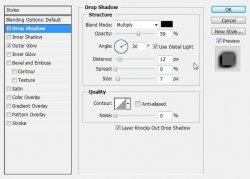
Right click the flower layer and choose Blending Options. Give it a drop shadow. (default will work fine)
Duplicate the layer (right click > Duplicate Layer)
Edit > Transform > Flip Horizontal
Move the layer up and to the left just a little bit.
Now open grass1 and resize it:
Position it like shown in the finished tag.
Give this layer the same drop shadow as your flowers.
Open grass2 and move it onto your tag. Resize it as before and move it onto your tag.
give it the same drop shadow.
Open cloud1 and resize it as before. Move it onto your tag and give it the same drop shadow.
Open cloud2 and resize. Move it onto your tag and apply the drop shadow.
Open ballon and resize. Move it onto your tag and apply the shadow again.
Ok that is all the elements we are going to need inside the frame.
This is about what you should have now:

Now we need to get rid of all the stuff hanging outside of the frame.
Right click the thumbnail of your "inside" layer and choose Select Layer Transparency.
Now select your "elements" group and then go to Layer > Layer Mask > Reveal Selection.
Select the frame layer again and open the Blending Options. Apply these layer styles:
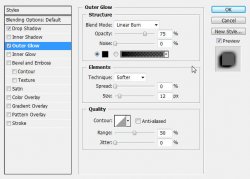
Open doodlie1 and resize BUT!! Instead of 12%, enter 25% for both the width and height.
Move it onto your canvas and go to Edit > Transform > Flip Horizontal and position it like shown in the finished tag.
Apply the same drop shadow as the element layers.
Now there is an icon on the layer that represents the layer styles. Right click this icon and choose Create Layer.
This will put the drop shadow on a new layer below the doodle. Right click this layer and choose Create Clipping Mask.
Right click it again and Merge Down.
Right click the doodle layer and Merge Down.
Open sheet3 and resize
Move it onto your canvas and position it at the bottom of the doodle. Give it the same drop shadow.
Right click the layer style icon and choose Create Layer.
Right click the shadow layer and choose Create Clipping Mask.
Right click it again and Merge Down.
Right click the leaves layer and Merge Down.
Open flower9 and resize as the other layers. Move it onto your canvas and position it in the middle of your leaves. Give it a drop shadow.
Right click the layer styles icon and choose Create Layer.
Right click the shadow layer and choose Create Clipping Mask.
Right click it again and Merge Down.
Right click the flower layer and Merge Down.
Open butterfly4 and resize as the other layers. Move it onto your canvas and position where desired.
Right click the layer styles icon and choose Create Layer.
Right click the shadow layer and choose Create Clipping Mask.
Right click it again and Merge Down.
Right click the butterfly layer and Merge Down.
Now you should have something that looks like this:
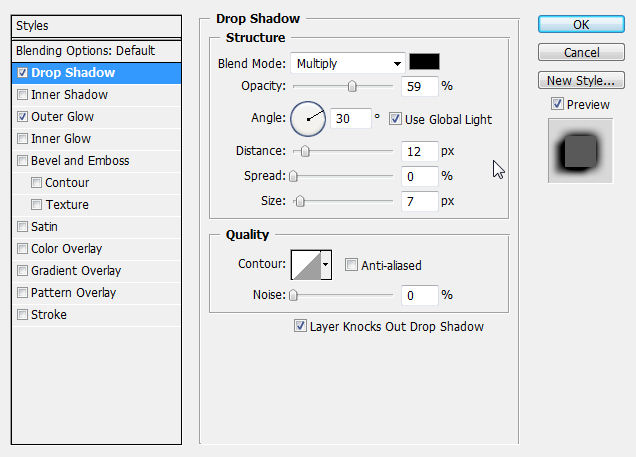
Open your tube and place where desired. Give it a drop shadow of choice. (the one that best suits the tube you are using.
Now is a good time to add your copyright information so you don't forget.
Now add a name or words of your choice. Add any layer styles that you see appropriate.
I have simply added a stroke and a drop shadow.
Image > Trim
Now you are done! Simple, huh?
And this is my result:

I hope you have enjoyed this tutorial! I would love to see your results.
Hosted by permission. Please link to this tutorial instead of redistributing it or its supplies.
Back to all tutorials