REBEL DEZIGNS · TUTORIAL ARCHIVE
Sweet Dreams
An original Photoshop tutorial by René Kunert (giZZY), rebuilt from the preserved archive.

This tutorial is NOT for beginners. There are plenty of tuts here if this one is a little over the top to understand.
Materials Needed:
- Scrap kit Sweet Dreams by Baby Cakes Scraps
- Template by Me.
- Wordart by Me.
- Tubes artist of your choice. I am using Elias Chatzoudis. This tube was purchased from MyPSPTubes.com but is now available at PSPTubesEmporium!
Remember that the move tool is your friend :slow:
Open your template in Photoshop.
Delete or hide the copyright layer.
Select the "back oval" layer and open BCS_paper_L.jpg from the kit.
Move it onto your canvas and position it about center of the tag. Right click it and choose Create Clipping Mask.
Select the "large oval" layer and open BCS_paper_C.jpg and move it onto your canvas. Position it and Create Clipping Mask.
Select the "half oval" layer and open BCS_paper_N.jpg and move it onto your canvas. Position it and Create Clipping Mask.
Select the "mid oval" layer and open BCS_paper_J.jpg and move it onto your canvas. Position it and Create Clipping Mask.
Select the "front oval" layer and open BCS_paper_E.jpg and move it onto your canvas. Position it and Create Clipping Mask.
Select the "frame 1l" layer and open BCS_paper_O.jpg and move it onto your canvas. Position it and Create Clipping Mask.
Duplicate this layer and drag it up to above the "frame 2" layer in the layers pallet (just click and drag it up)
Create Clipping Mask
Now for some layer styles! This is always the fun part

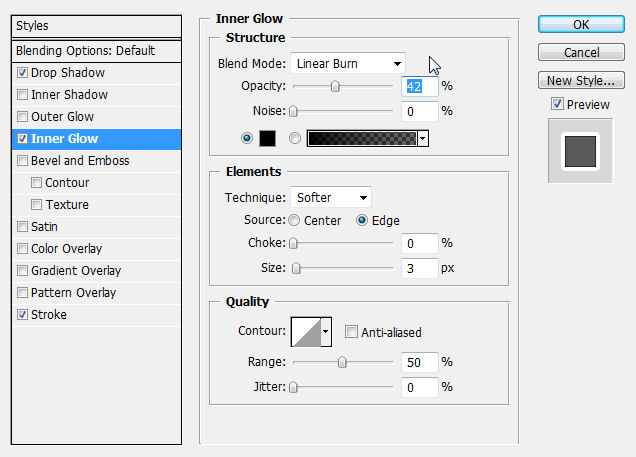
Select the "back oval" layer and right click. Choose Blending Options. Now apply these styles to that layer:
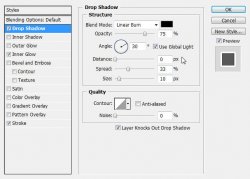
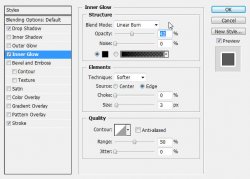
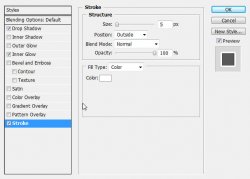
You should now have something that looks similar to this:
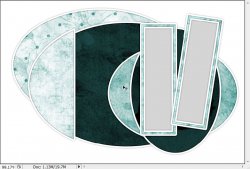
Ok here are a few more difficult instructions... so pay close attention.
Select the paper layer that is clipped to the "front oval" layer. (This should be "Layer 5")
Open BCS_Ribon_A.png and move it onto your canvas.
Edit > Free Transform and put these values in at the top of your screen:

Go to the Blending Options of that layer and add your drop shadow of choice. (right click)
Open BCS_Pale_Rose.png and move it onto your canvas.
Edit > Free Transform:

Go to the Blending Options and add the same drop shadow as before.
Now open the BCS_Moon.png and move it onto your canvas. Position it where desired.
INTRODUCING A NEW TOOL! (ok for my tuts anyway)
Choose the color replacer from your tools pallet. (right click the paintbrush tool to find it)
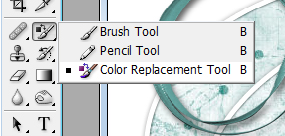
Make sure the settings up at the top of the screen look like this:

Click on your foreground color in your tools pallet and select a color from your tag. (any will work)
Now use the color replacer to paint over the moon.
Now add the same drop shadow as the other element layers.
Open BCS_Bird.png and move it onto your canvas. Edit > Free Transform:

Now add the same drop shadow.
And so far:
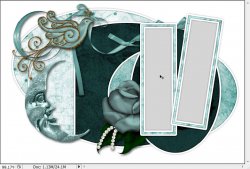
Select the TOPMOST layer in your layers pallet.
Open your tube and place it accordingly (use my finished tag as a guide)
Good idea to add your copyright information now so you don't forget.
Ok here comes another complicated part ;^_^
Now add a layer mask to your tube layer. Layer > Layer Mask > Reveal All
Ok... Pay attention now
CTRL + Click on your "frame 1 inner" layer. This works just like the Float/Defloat in PSP.
Now... CTRL + SHIFT + Click on the "frame 2 inner" layer. This is very important!!! This will select the area of BOTH layers.
Now make sure you are on the layer mask of the tube layer. Click on the white part of the layer just to make sure:
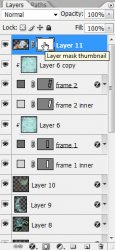
Go to Select > Modify > Contract: 9
Go to Select > Inverse
Now use your eraser tool to erase the area between the frames. (use my finished tag as a guide)
Create a new layer. Layer > New > Layer... Name it Shadow.
Now take your paintbrush tool (right click the color replacer again) and choose a black color.
CAREFULLY paint an area of shadow on the areas that are inside the frame:
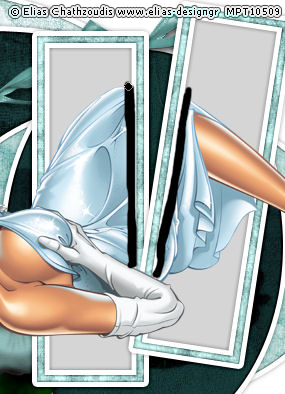
Filter > Blur > Gaussian Blur: 5
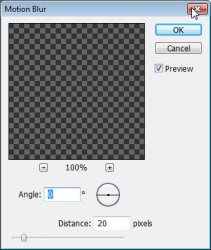
Filter > Blur > Motion Blur:
Now right click this shadow layer and Create Clipping Mask. It should now be clipped to your tube layer.
And another fun part

Add a drop shadow to your tube layer.
There is a little icon that represents your layer styles:
Right click this icon and choose Create Layer.
Just like before:
CTRL + Click on your "frame 1 inner" layer.
Now... CTRL + SHIFT + Click on the "frame 2 inner" layer.
Select > Inverse
Use your eraser tool to erase the shadow on the middle portion of the frames.
Easy enough? Do you still have your monitor? You mean you haven't given up??? Strong one, aren't you?
You can change the colors of the inner parts of the frames by double clicking the color in the layers pallet:
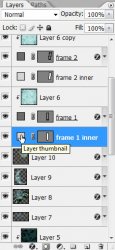
Simply choose the color you wish to fill it with and click OK.
Now select your topmost layer in your layers pallet.
Open the wordart that I have provided and move it onto your canvas. Position it where desired and give it a drop shadow.
Now just add a name.
Simple, huh? :lmao:
Well, that was it. I sure hope you still have your computer and all of its parts in tact. Just save your image as a .png or a .jpg and start on your next nerve wracking challenge.
Hide the background layer before saving if you would like it as a transparent .png file.
And this is my result:
I hope you have enjoyed this tutorial! I would love to see your results.
Hosted by permission. Please link to this tutorial instead of redistributing it or its supplies.
Back to all tutorials