REBEL DEZIGNS · TUTORIAL ARCHIVE
Sweet Sensation
An original Photoshop tutorial by René Kunert (giZZY), rebuilt from the preserved archive.
Materials Needed:
- Scrap kit by Baby Cakes Scraps called Flight of Fancy.
- Tube by the artist of your choice. I am using the wonderful work of Barbara Jensen. Please do not use this image unless you have a license to do so. This tube comes from her PINUP PACK #11
Tips:
- Right click the thumbnail of a layer and Select Pixels for the same effect of the PSP float/defloat option.
- Using layer masks, you can erase portions of a layer without destroying the layer.
- Clipping masks are your friend.
- Use the wand tool to select the inside of frames and then Selection > Modify > Expand: 5-10 pixels. Then add a new layer below the frame and fill with white. This will add the inside to your frames. You can then clip a paper to the filled layer.
Open a new 550x550 pixel canvas.
Flood the first layer with white. (this will help you see the tag better)
Open your elements of choice and place them on the canvas.
Here are the elements I have used:

Right click any of the element layers.
Choose Blending Options.
Give it a drop shadow of choice.
Repeat this will all of the element layers.
Vary the distance and size of your shadows to give your tag more depth.
Choose a place for your tube to sit.
I have chosen to put it just above the two frame layers.
Give it a drop shadow also.
Add those copyrights!!!
THIS IS OPTIONAL!!! This is completely optional, but it will make your tag appear "cleaner"
This is a tricky part, so it might take a couple of tries to get it just right.
Select > All Layers
CTRL + Click the white background layer to UNhighlight it.
Layers > Group Layers
This will put all your layers into a group.
To expand this group, click the little arrow beside the group in the layers pallet.
Right click the thumbnail of the of the bottommost element layer (the frame).
Choose Select Pixels.
Right click each of the other element thumbnails and Add Transparency Mask.
This will create a selection of all your tag elements:
Highlight your group in the layers pallet (the 'layer' with the folder icon)
Layer > Layer Mask > Reveal Selection.
This will get rid of any drop shadows outside of the tag area.
Hide the white background layer.
Close the group now. (click the arrow again beside the folder icon in the layers pallet)
Now add a name or other wording to your tag. We can't be having any blank tags

You can add any layer styles to the name/wording.
I have used a Stroke, Gradient Overlay and a Drop Shadow.
Now save your tag as a .png or .jpg
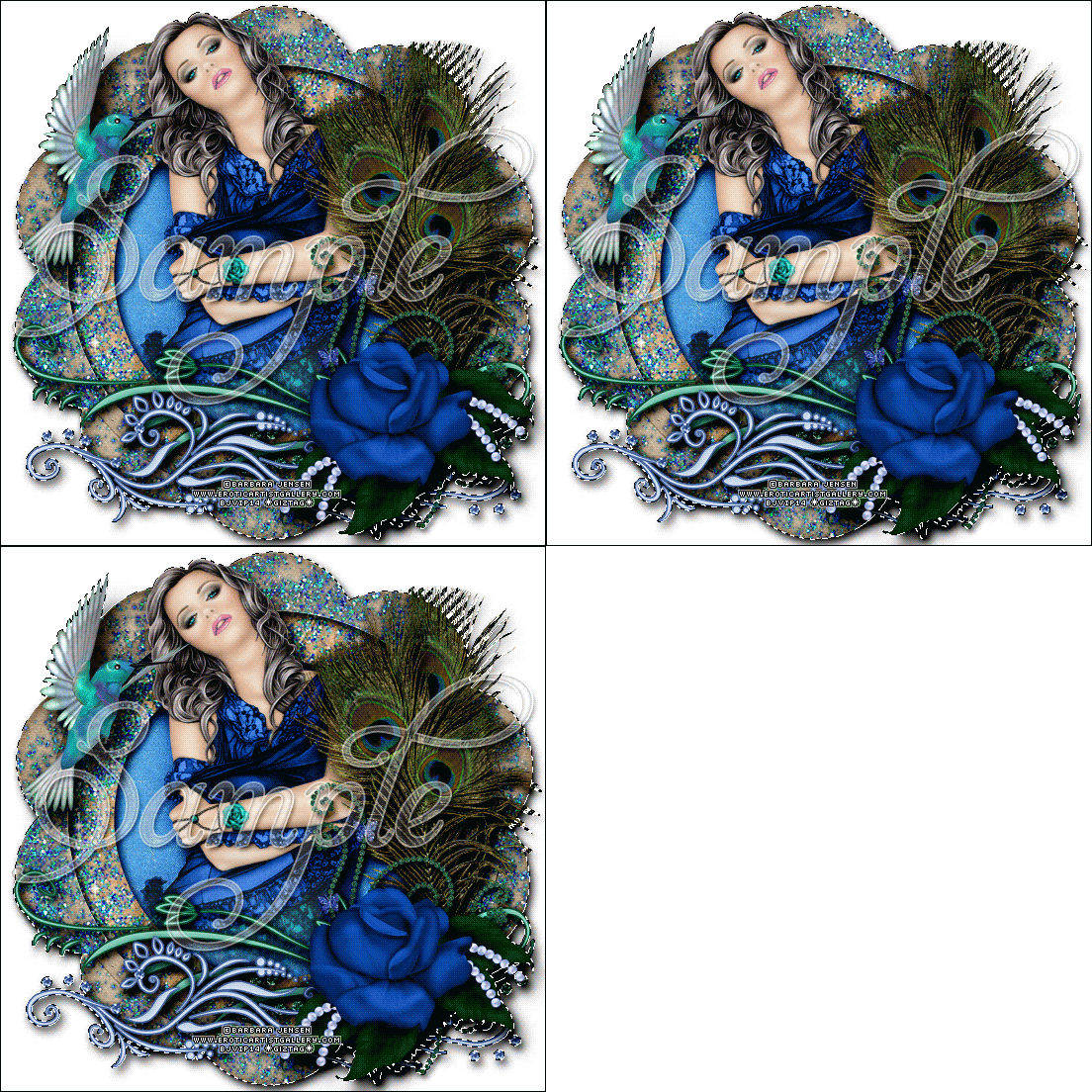
And this is my result:

I hope you have enjoyed this tutorial! I would love to see your results.
♥♥♥
Hosted by permission. Please link to this tutorial instead of redistributing it or its supplies.
Back to all tutorials