REBEL DEZIGNS · TUTORIAL ARCHIVE
Sweet Shoppe
An original Photoshop tutorial by René Kunert (giZZY), rebuilt from the preserved archive.
Materials Needed:
- Patience
- Scrap kit by Digicats (& Dogs) called Ice Cream Shoppe
- Tube by the artist of your choice. I am using the wonderful work of Anna Liwanag. Please do not use this image unless you have a license to do so.
Open a new 550x200 pixel white canvas. You may use whatever size you like, this is just my standard forum sig size.
Open a paper from the kit and place it on the tag.
Edit > Free Transform
Stretch it to fit correctly on the canvas. It doesn't matter if it is stretched a bit.
Filter > Blur > Motion Blur
Angle: 0
Distance: 100
Filter > Distort > Ripple
Amount: 320
Size: Large
Filter > Sharpen > Smart Sharpen
Amount: 200
Radius: 2
Right click the layer in the layers pallet and choose Merge Down.
Now arrange a few elements on your tag.
I won't go into detail about the elements I have used, so instead, I will just show you what I have done.
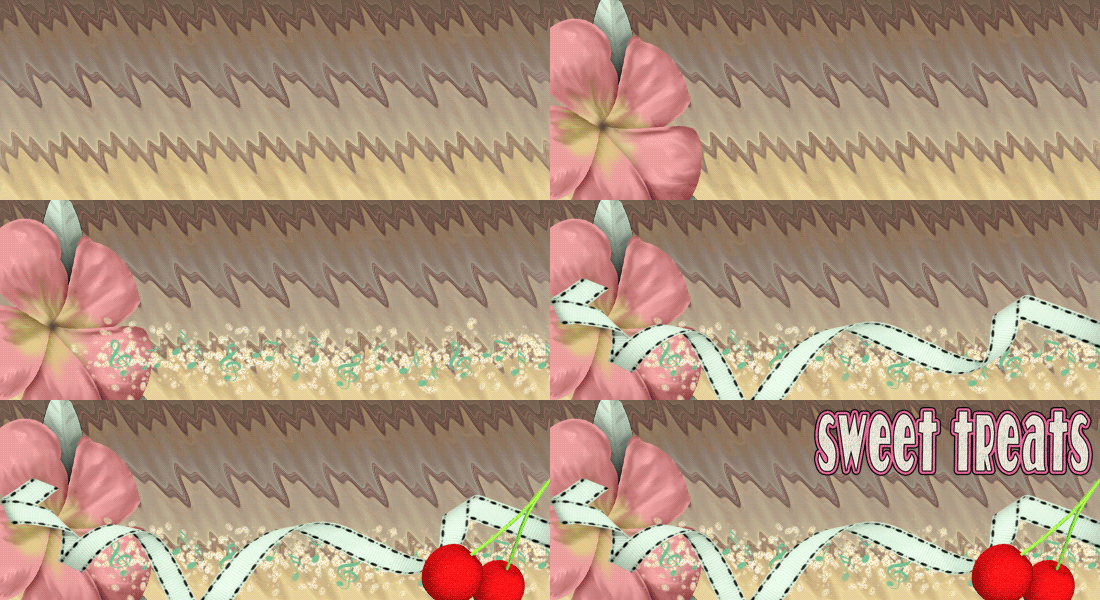
After you have placed your elements, right click each element in the layers pallet and choose Blending Options.
Give each of the layers a drop shadow of choice.
Remember that varying your shadows will give your tag more depth.
Now place your tube on your tag. Position it where you want and give it a drop shadow just as before.
Add those copyrights!!
If you haven't already, highlight the topmost layer of your tag.
Layer > New > Layer...
Flood fill this layer with any color. (We will be making it completely transparent)
Right click on this layer in the layers pallet to open the Blending Options.
Add these styles to your layer:
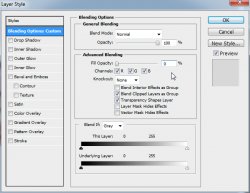
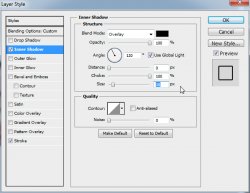
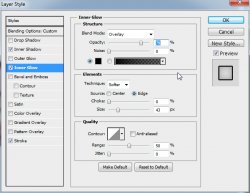
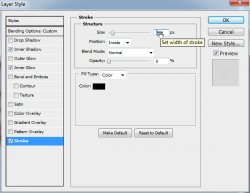
Now add a name or snag phrase to your tag. You can also add layer styles to your name/phrase using the blending options.
I have used a stroke, drop shadow and gradient overlay.
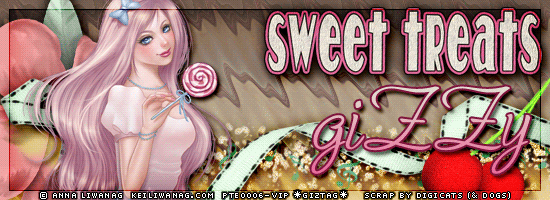
Here is what I have so far:
Prepare your work area for animation.
Animation Highlight your background layer (bottom)
Layer > New > Layer
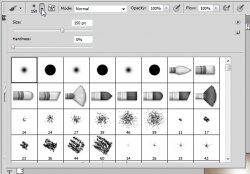
Take a large soft brush and place random white dots on your tag.
The brush options are at the top of your screen when you have the brush tool selected.
Filter > Blur > Motion Blur.
Angle: -50
Distance: 999
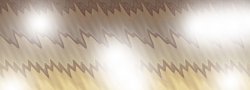
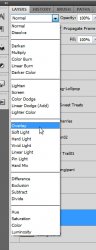
Set the blend mode of this layer to Overlay. You can find the option at the top of your layers pallet.
Layer > New > Layer...
Put some more random dots on your tag. Be sure to put them in different spots. Motion Blur again. Set the blend mode to Overlay.
Layer > New > Layer...
Repeat the dots process.
Now we should have three layers with the random overlay spots.
You have your animation window set up, right?
Good. Let's continue.
Hide the top two spots layers. (the eye icon in the layers pallet beside the layer's thumbnail)
You now have your first animation frame.
Duplicate the frame by clicking on the little folded paper icon at the bottom of your animation window.
Hide the first dots layer, and unhide the second one.
Duplicate the frame again.
Hide the second dots layer and unhide the last one.
You should now have 3 animation frames.
Now here comes the tricky part, so pay close attention.
Highlight your first frame in the animation window.
At the bottom of the window, there is a button that has 4 fading circles.
Click it.
In the tween box that pops up, enter 3 and click OK.
Now highlight frame number 5 and repeat the tween.
IMPORTANT!!!
Now highlight the last frame.
Click on the tween button again ....BUT....
There is a drop down box that says Tween with:
Click on that and choose First Frame and click OK.
Set your frame delay to 0.1 sec.
Now to save your animation.
And this is my result:
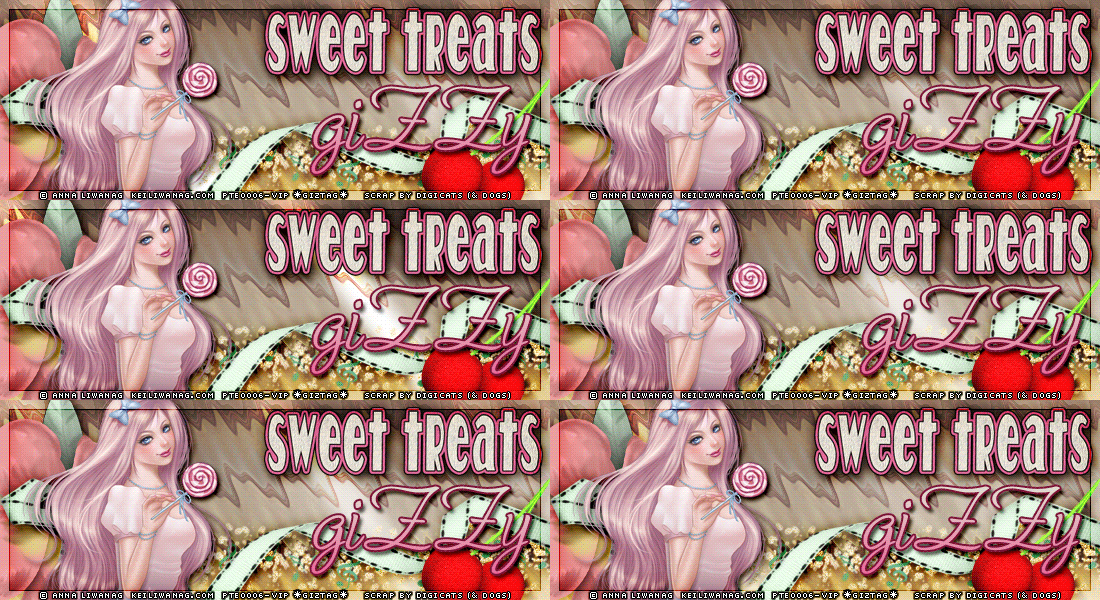
I hope you have enjoyed this tutorial! I would love to see your results.
♥♥♥
Hosted by permission. Please link to this tutorial instead of redistributing it or its supplies.
Back to all tutorials