REBEL DEZIGNS · TUTORIAL ARCHIVE
Sweetheart
An original Photoshop tutorial by René Kunert (giZZY), rebuilt from the preserved archive.
Materials Needed:
- Mask of choice.
- Animation by me. DO NOT redistribute.
- I am using TWO scrap kits by CrazyCarita. Pink Sweetheart and Her gorgeous Limited Edition kit called Pink Caress. If you do not have the Pink Caress kit, you may use other elements instead.
- Tube by the artist of your choice. I am using the ever gorgeous work of Barbara Jensen. Please do not use this image unless you have a license to do so. This tube comes her Mini Pack CC under the Mini Packs category.
Open your mask in Photoshop. You must prepare your mask for use in your tag.
Refer to this topic to find out how:
viewtopic.php?f=156&t=6898#p64299
Open a new 550x550 pixel transparent canvas. Make sure it is 72 DPI.
Flood fill this layer with white.
Move your prepared mask onto the canvas.
Edit > Free Transform:
Move the corners of the bounding box to match up with the boundaries of your canvas.
Open a paper of choice and place it over the mask.
Right click the paper layer in the layers pallet and choose Create Clipping Mask.
Right click again and choose Merge Down.
Open the elements you wish to use and arrange them on the tag.
Edit > Free Transform to arrange, resize and rotate the elements.
I will not go into how to place the elements in this tutorial. But I will show you what I have done here.

Right click one of the element layers in the layers pallet and choose Blending Options.
Choose Drop Shadow from the window that pops up and add a drop shadow of choice.
Highlight the bottom element layer in the layers pallet.
Shift + click the top element layer.
Right click and Merge Layers.
Make sure you have NOT merged your mask layer in the group.
(If you have, just go to Edit > Undo)
Now you should have 3 layers to your tag:
- White background layer
- Mask layer
- Elements layer
Highlight your Mask layer and open the animation that I have supplied in the list up there ↑
Highlight the Frame 1 layer.
Shift + click the Frame 7 layer.
Layer > Group Layers
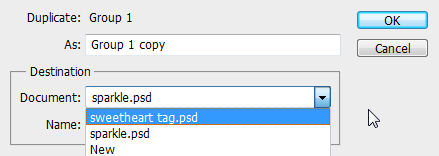
Right click on the Group 1 name and Duplicate Group
DON'T HIT OK YET!
In the Destination dropdown box, find the tag you are working on. Select that option and THEN hit ok.
You may now close the original animation psd file.
Right click on the THUMBNAIL of the mask layer.
Choose Select Pixels.
Now highlight your group.
Layer > Layer Mask > Reveal Selection.
Your group is probably collapsed, so you will need to click on the little arrow beside the folder icon to expand the group.
Hide all the Frame layers EXCEPT Frame 1.
Highlight the Elements layer and open your tube of choice.
Place it on your canvas and give it a drop shadow of choice.
ADD COPYRIGHTS! You don't want to forget those.
Add a name or other wording to your tag. Blanks are Bad.
You may add layer styles to your name layer using the Blending Options. This of course, is optional.
If you only want a static tag without animation, you may stop here. If you would like to add the animation, please proceed.
Prepare your work area for animation.
Animation Your animation window is open, right? Good.
If you look, your first frame is already there. Just duplicate the layer by clicking on the little folded paper icon at the bottom of the animation window.
Hide the Frame 1 layer and UNhide the Frame 2 layer.
Duplicate the animation frame again.
Hide the Frame 2 layer and UNhide the Frame 3 layer.
Keep doing this until you have 7 animation frames. Each frame with its corresponding Frame layer visible.
Be sure to click the following links to finish off your animation.
Set your frame delay to 0.1 sec.
Now to save your animation.
And this is my result:

I hope you have enjoyed this tutorial! I would love to see your results.
Hosted by permission. Please link to this tutorial instead of redistributing it or its supplies.
Back to all tutorials