REBEL DEZIGNS · TUTORIAL ARCHIVE
Timeless Romance
An original Photoshop tutorial by René Kunert (giZZY), rebuilt from the preserved archive.
Materials Needed:
- Scrap kit by Rieneke called Romance.
- Tube by the artist of your choice. I am using Anna Liwanag. This tube was purchased from MyPSPTubes.com but is now available at PSPTubesEmporium!
- Dot pattern by me (optional for animation)(right click and save link as)
- Filter: Alien Skin Xenofex 2 > Constellation (optional for animation)
This tutorial requires the basic knowledge of how layers work in Photoshop.
You may refer to the forum to find out more about this:
http://rebel-dezigns.com/community/index.php?threads/6896/
Ok I am not going to go into detail about how to move and resize your layers, so if you do not know how to do this, maybe you should start with a simpler tutorial. There are several to choose from that will teach you the basics of layer resizing.
Open a new transparent image that is 550X550 pixels.
Edit > Fill > White.
Open the elements of your choice.
Select > All
Edit > Copy
Go back to your tag canvas
Edit > Paste
Do this for all your element layers, resizing and arranging them to your liking.
Here is what I have:

And this is my layers pallet:
(note that your layers will have different names, these names are only to refer to the element used)
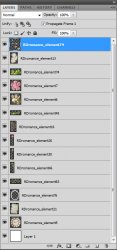
Right click on an element and choose Blending Options.
Give your element a drop shadow of choice.
I used: Distance: 3; Size: 3; Angle: 120; I left everything else the same.
Right click your element layer again and choose Copy Layer Styles.
Right click each of your other element layers and choose Paste Layer Styles.
Highlight your Frame layer in the layers pallet.
Use your selection wand tool to select the inside of the frame.
Select > Modify > Expand: 5
Highlight the layer BELOW your frame in the layers pallet.
Add a new layer (Layer > New > Layer...)
Edit > Fill > White.
Select > Deselect.
Open a paper of your choice and place it on the canvas.
Right click the paper layer and choose Create Clipping Mask.
Right click the paper again and choose Merge Down.
Highlight your topmost layer in the tag.
Open the tube of your choice and place it on the tag where it looks best.
Right click and Paste Layer Style.
If you are using a half tube:
Move your tube layer down until it is just under the elements at the bottom of your tag. Just drag and drop in your layers pallet.
Highlight your topmost layer again and add your copyright information.
Now add a name or other wording/wordart to your tag.
Here is my tag so far:

If you only want a static tag without animation, you may stop here.
Hide your white background layer and save as a PNG or JPG.
If you would like to add the animation, please proceed.
Prepare your work area for animation.
Animation Highlight the layer you created for the inside of the frame. (the layer you clipped the paper to)
Open the dot pattern that I have supplied and place it on your tag.
Duplicate it and grab your Move tool (first tool in the tools pallet)
Hit the down button on your keyboard twice.
Duplicate it again and hit down twice more.
Duplicate it and hit down twice again.
Duplicate it one last time and hit down on your keyboard twice again.
You should now have 5 dot layers.
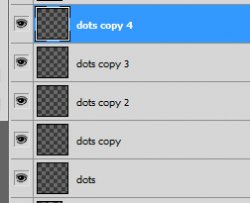
Do the following to EACH of the dots layers:
- Filter > Stylize > Diffuse: Lighten Only
- Fitler > Noise > Add Noise: 50; uniform; Monochrome UNchecked
- Filter > Alien Skin Xenofex > Constellation:
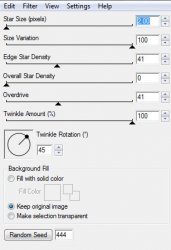
Highlight your original dots layer.
Hide all the copies using the little eye icon beside their thumbnails in the layers pallet.
Frame 1: Your first frame is already present in your animation window. (refer to the link above this box)
Frame2: Duplicate your frame in your animation window.
Hide your original dots layer.
Unhide your dots Copy layer.
Frame 3: Duplicate the frame again.
Hide the dots Copy layer.
Unhide the dots Copy 2 layer.
Frame 4: Duplicate the frame again.
Hide the dots Copy 2 layer.
Unhide the dots Copy 3 layer.
Frame 5: Duplicate the frame again.
Hide the dots Copy 3 layer.
Unhide the dots Copy 4 layer.
Highlight your Original dots layer.
Shift + click on the dots Copy 4 layer.
This will highlight all the dots layers.
Layer > Group Layers
Right click on the thumbnail of the paper layer.
Choose Select Pixels.
This will give you the selection around your layer.
Highlight your group.
Layer > Layer Mask > Reveal Selection.
This will crop the animation into the frame itself.
Refer to the links below to save your animation.
Set your frame delay to 0.1 sec.
Now to save your animation.
And this is my result:
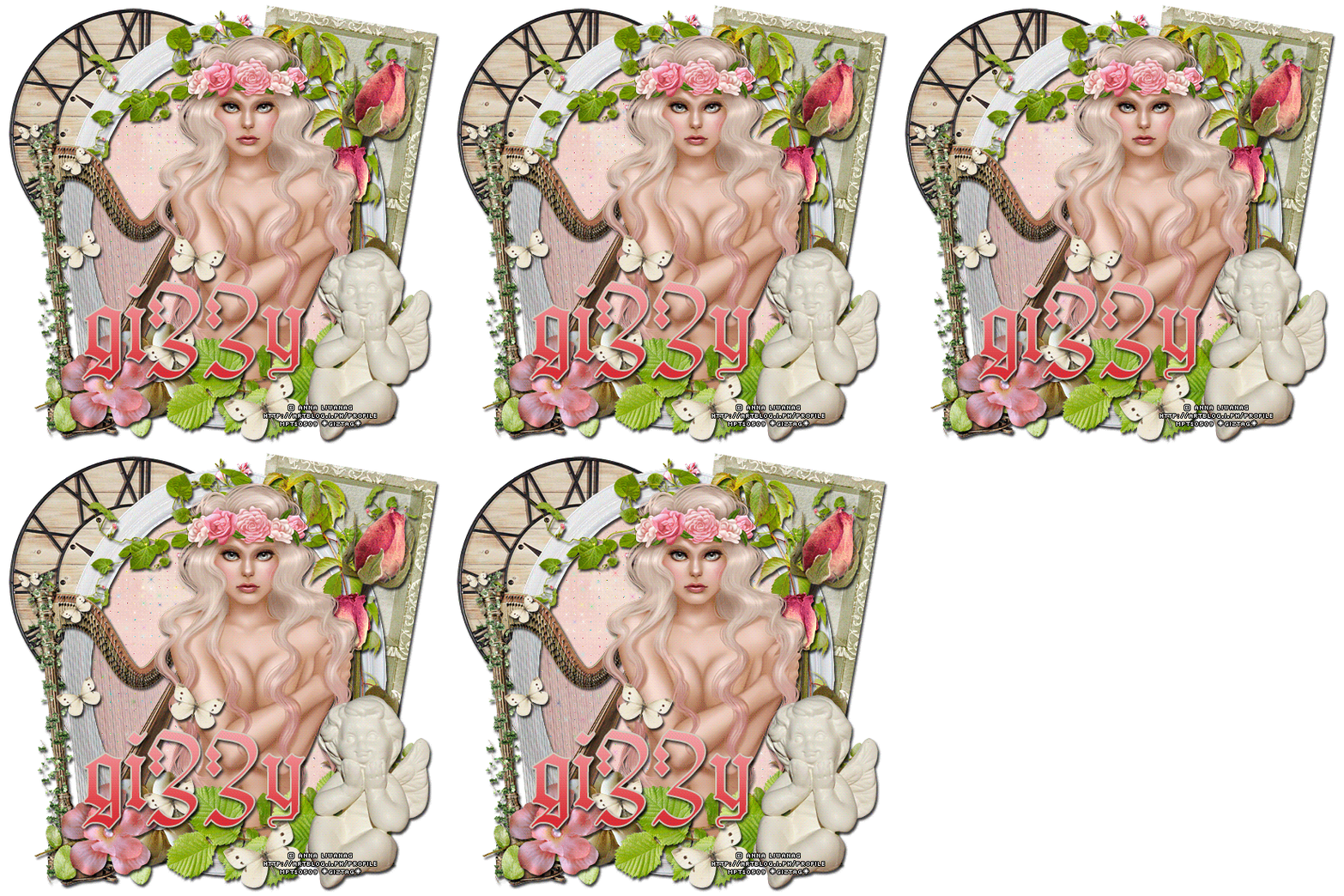
I hope you have enjoyed this tutorial! I would love to see your results.
Hosted by permission. Please link to this tutorial instead of redistributing it or its supplies.
Back to all tutorials