REBEL DEZIGNS · TUTORIAL ARCHIVE
Trust in Love
An original Photoshop tutorial by René Kunert (giZZY), rebuilt from the preserved archive.

This tutorial will teach you how to use the Puppet Warp feature of CS5 to create a simple animation.
Materials Needed:
- A few supplies by me. Do not redistribute.
- Scrap kit by the talented Carita called Circle of Love.
- Tube by the artist of your choice. I am using Barbara Jensen. Please do not use this image unless you have a license to do so.
Open your mask in Photoshop.
First we want to prepare the mask.
Refer to this topic on the forum to learn how:
viewtopic.php?f=156&t=6898
Doubleclick on the name of the layer and name it Mask.
Add a new layer and Edit > Fill: White.
Rename this layer Background.
Drag it under your mask layer in the layers pallet.
Highlight your mask layer.
Open a paper of your choice and move it onto your canvas.
Right click the paper layer in the layers pallet and Create Clipping Mask.
Right click again and Merge Down.
Now we are going to add a variety of elements to the tag.
Use Edit > Free Transform to resize and rotate your layers.
I know this can be a long boring process if I just name off the layers...
Sooooo Here is what I did:
(I added a stroke to the layer only for visibility purposes)

It doesn't look like much now, but just wait.
Now that you have all of your elements laid out, we need to add some shadows.
Right click on one of the element layers and choose Blending Options.
Use the Drop Shadow option to add a shadow of your choice.
Play around with the settings until you get it just the way you want it.
Repeat with all of your element layers.
★
Now highlight the glitter heart frame.
Use your selection wand tool to select the inside of your frame.
Select > Modify > Expand: 2
Highlight the layer directly BELOW your heart frame and create a new layer.
Layer > New > Layer...
Flood fill this layer with Black.
★
Highlight the round metal frame and repeat between the stars.
Open the heart scatter that I provided.
Place it anywhere on the tag you would like.
I have placed it above the tassel and below the heart charm.
Do not add any shadows to this layer.
Now open your tube of choice.
Place it on the tag where desired and give it a drop shadow.
Add those copyrights!!
Put a name on your tag. Give it some layer styles if you like (in Blending Options).
I used a stroke, outer glow, and drop shadow.
Here is what you should have so far:

If you only want a static tag without animation, you may stop here. If you would like to add the animation, please proceed.
Prepare your work area for animation.
Animation You clicked on the above links, right? Good.
This is going to get to be a LOT of layers, so I hope you can keep up.
Highlight your mask layer.
Duplicate it 3 times. (4 mask layers total)
Highlight the original mask layer.
★
Filter > Noise > Add Noise > 5
Alien Skin EyeCandy 5 > Textures > Texture Noise:
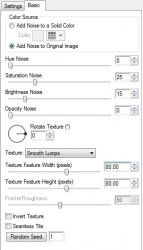
Hit the random seed button.
★
Repeat between the stars for all the mask copies.
Leave those for now and search out your Heart Charm layer.
IMPORTANT!: Right click the layer and Convert to Smart Object.
This will remember all settings that you have used on your layer.
Now... here is a tricky part.
Edit > Puppet Warp.
You will notice that your layer is now covered in a mesh. You can use this mesh to place "pins" on your layer.
DO NOT move the pins, just place one at the top of the chain and one at the bottom of the heart:
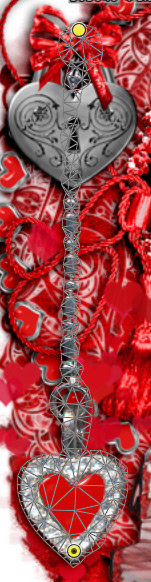
Now just click on the check mark button at the top right of your screen to set the pins.
Duplicate this layer.
Edit > Puppet Warp
Move the bottom pin slightly to the left.

Click the check mark at the top of the screen.
Filter > Sharpen > Smart Sharpen:
Amount: 100
Radius: 0.5
Remove: Gaussian Blur
Highlight the original charm layer again.
Duplicate this layer.
!! Move this duplicate under the original charm layer.
Edit > Puppet Warp
Move the bottom pin slightly to the right:

Click the check mark at the top of the screen.
Filter > Sharpen > Smart Sharpen:
Amount: 100
Radius: 0.5
Remove: Gaussian Blur
Now comes the fun part...
Your animation window is open right? Good.
Hide the copies of the mask layer. (use the eye icon beside the layer thumbnail)
Keep the original visible.
Hide the copies of the charm layer.
Keep the original visible.
Frame 1: Your first frame is already there.
Frame 2: Duplicate your frame in the animation window. (the paper icon at the bottom)
Hide the original mask layer and unhide the first copy.
Frame 3: Dupliate the frame again.
Hide the first copy and unhide the second.
Frame 4: Duplicate the frame again.
Hide the second copy and unhide the third.
No more duplicating frames. We want to work with the ones that are already here.
Frame 1: Go back to your first frame.
Actually... that frame is just how it should be, so
Frame 2: go to your second frame.
Hide the original charm layer and unhide the first copy (above)
Frame 3: Go to the third frame.
Hide the copy and unhide the original.
Frame 4: Go to the fourth frame.
Hide the original and unhide the second copy.
Set your frame delay to 0.1 sec.
Now to save your animation.
That is pretty much it... Long enough??? I think I might try an even longer one... LOL kidding... maybe...
And this is my result:
I hope you have enjoyed this tutorial! I would love to see your results.
Hosted by permission. Please link to this tutorial instead of redistributing it or its supplies.
Back to all tutorials