REBEL DEZIGNS · TUTORIAL ARCHIVE
Vampire Girl
An original Photoshop tutorial by René Kunert (giZZY), rebuilt from the preserved archive.
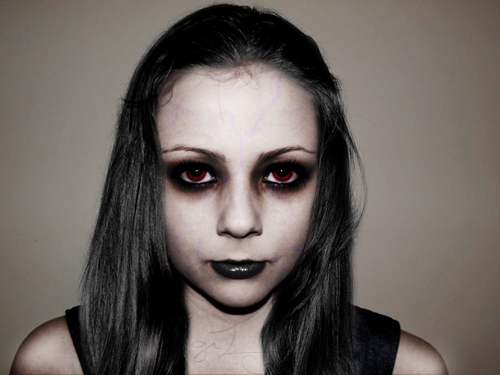
First off, I would like to thank ~Lucy-Stock for the lovely stock photo that I was allowed to use for this tutorial.
Lets Get Started!
Open your image in Photoshop.
We are using this image for the tutorial, but any image can use the same techniques.
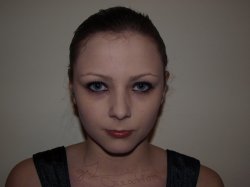
Make any adjustments to the image you see fit. I have used the Liquify filter to manipulate the jaw, eyes, lips, and nose.
Also I have dodged the irises of the eyes to brighten them up a bit.
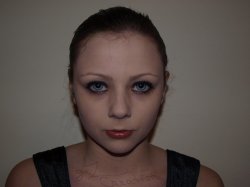
Using the pen tool with the path only option selected, select only the areas of the image that show skin.

Right click and set the selection. Copy and paste to a new layer.
Desaturate and fade the saturation by 75%.
Adjust the brightness and contrast to suit the image.
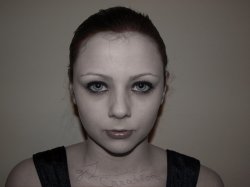
Duplicate the layer and set the blend mode to screen and reduce the opacity to 50%.
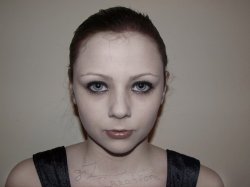
Select the akin areas once again (reselect).
Copy merged and paste to a new layer.
Desaturate and set the blend mode to soft light.
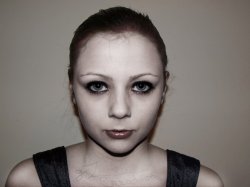
Create a new layer and using the paint brush tool set to a small size paint the areas of the irises with red.
Set that blend mode to overlay.
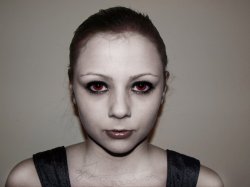
Using the burn tool, burn the areas of skin around the eyes. Making sure that you avoid the whites of the eyes.
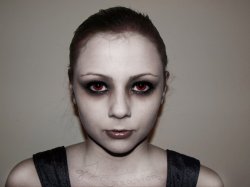
Select the area of the lips and feather the selection by around 5px. Desaturate.
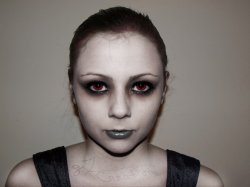
Create a new layer and paint with black over the lips. Blur this layer just a little and add a small amount of noise. Set this blend mode to overlay and the opacity to 33%.
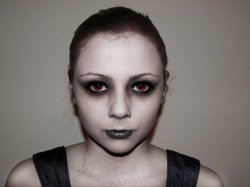
Find the right hair for your image and erase everything from the image that is not needed.
Desaturate the hair and adjust the contrast to match the image.
Be sure to add some shadows here and there to make the hair look like it belongs to the image.
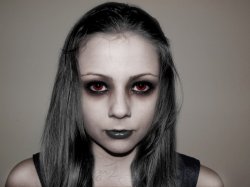
Create a new layer and paint some veins on the face with a small brush and set the layer mode to soft light and adjust the opacity.
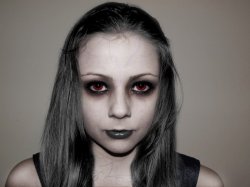
Merge all layers and duplicate.
Set the top layer blend mode to soft light.
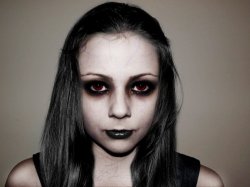
This should be about the end of the tutorial. Though you can go back and play around with contrast and colors.
Hope you enjoyed this lesson.
Full size.
I hope you have enjoyed this tutorial! I would love to see your results.
Hosted by permission. Please link to this tutorial instead of redistributing it or its supplies.
Back to all tutorials