REBEL DEZIGNS · TUTORIAL ARCHIVE
Winter Wonders
An original Photoshop tutorial by René Kunert (giZZY), rebuilt from the preserved archive.
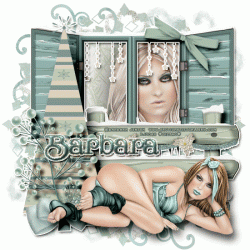
Materials Needed:
- Mask of choice. I am using three pretty ones by Vix.
- Scrap kit called Snow Blue by Bluedream Designs. This is an older kit, so I hope it stays online.
- Tube by the artist of your choice. I am using the work of Barbara Jensen. Please do not use this image unless you have a license to do so.
- Filter > Mac's Remove White
Open a new 550x550 pixel image (72 dpi).
Open your masks and place them on your canvas.
Image > Adjustments > Invert
Filter > Mac's Remove White
Image > Adjustments > Invert
This will get rid of the black part of the masks.
Do that to all three masks.
Select your bottommost mask and open a paper of choice.
Place it on your canvas.
Right click the layer in the layers pallet > Create Clipping Mask.
Right click the layer in the layers pallet > Merge Down
Do that to all three mask layers.
Now you should have something that looks like this:
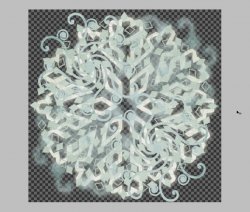
Hide all your mask layers so you can see your working area better.
Open some elements of choice and arrange them on your canvas to look like this:
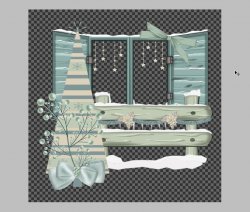
Right click the element layers in the layers pallet and choose Blending Options.
Add a drop shadow of your choice. Do not add a drop shadow to the bottom element.
Now comes a fun part. We are going to combine all these elements without having any stray shadows.
You will see an icon on the layers in the layers pallet that represents your layer styles:
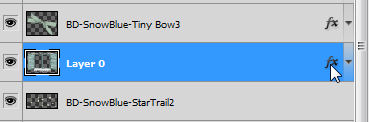
Right click this icon and choose Create Layer.
This will place the shadow on a separate layer.
Right click the shadow layer and Create Clipping Mask.
This will clip the shadow to the layer below it.
Right click the shadow layer and Merge Down.
Right click the ORIGINAL (the one the shadow came off of) layer and Merge Down.
Do this to all the element layers.
Now you should have the shadows on your layers but NOT outside your layers.
Use your selection wand and select inside the windows. Select one and then hold Shift and select the other.
Select > Modify > Expand: 5
Create a new layer and move it below your elements layer in the layers pallet.
Edit > Fill > White (choose from the dropdown box)
Open another paper of your choice and move it onto your canvas.
Create Clipping Mask.
Merge Down.
Select your elements layer and open the Blending Options.
Give this layer a white stroke of 2 px and a small drop shadow.
You may now unhide your mask layers. (You may also merge these layers if you like.
Select the layer that contains the inside of the window.
Open a tube of your choice.
If this tube has a closeup, move it onto your canvas.
Position it where you want and Create Clipping Mask over the window inside.
Select your topmost layer and place the fullsize tube on the tag.
Add a drop shadow of your choice.
ADD COPYRIGHTS AND LICENSE NUMBER (if required)
Now add a name of choice or whatever wording you want.
Apply any layer styles you would like. (deviantArt has tons for free download)
And you are done!!
Nope, no animation this time. I figured we would do something a little different.
Woooooo Holy cow, I did a simple tutorial! WOW! Don't faint now... :lmao:
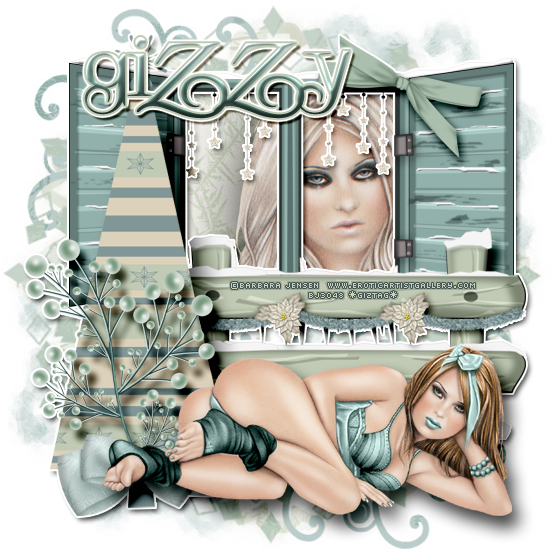
And this is my result:
I hope you have enjoyed this tutorial! I would love to see your results.
Hosted by permission. Please link to this tutorial instead of redistributing it or its supplies.
Back to all tutorials