REBEL DEZIGNS · TUTORIAL ARCHIVE
You and Me
An original Photoshop tutorial by René Kunert (giZZY), rebuilt from the preserved archive.
Materials Needed:
- Supplies Do not redistribute
- Two tubes by the same artist of your choice. I am using Nicolas Rivet. This tube was purchased from MyPSPTubes.com but is now available at PSPTubesEmporium!
- Wordart by CrazyCarita. This wordart is in .psp format and will need to be converted to .psd before opening in Photoshop.
- Open the file in Paint Shop Pro.
- Save as > .psd format
Open your supplies in Photoshop.
On the mask, go to Filter > Noise > Add Noise: 50
Using your move tool, move your frame onto your mask canvas.
Use your selection wand and select the inner part of the frame. Go to Select > Modify > Expand: 10
Select your mask layer and create a new layer. Layer > New > Layer.
Flood fill this layer with a light blue color. (7dadc8)
Right click this layer and go to Blending Options. Add a pattern overlay of your choice. This works best when using a grayscale pattern with the blend mode set to Overlay and an Opacity of about 50%.
Select your frame layer and open both of your tubes. Place them on your canvas using the move tool and position them where they look best. You may use my tag as a guide.
Merge the two tube layers together. Click one and then CTRL + Click the other. Right click and Merge Layers.
Add a drop shadow of choice by right clicking the layer and choosing Blending Options.
Now is a good time to add your copyrights so you don't forget.
Now for a tough part.
Add a layer mask to your tube layers by going to Layer > Layer Mask > Reveal All
Right click your frame layer's thumbnail in the layers pallet. Choose Select Layer Transparency (or CTRL + Click the thumbnail)
Select your tube layers again. BUT Click on the layer's mask.
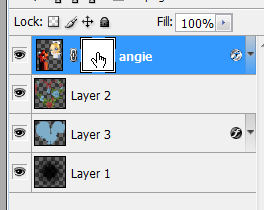
Using your eraser tool, erase the areas that are covered by the leaves.
Select > Deselect.
Now erase the portions outside the frame.
But we have to fix that shadow...
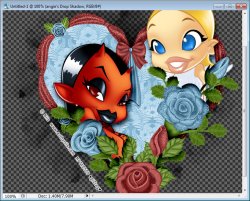
Right click the icon on your tube layer that represents the layer styles:
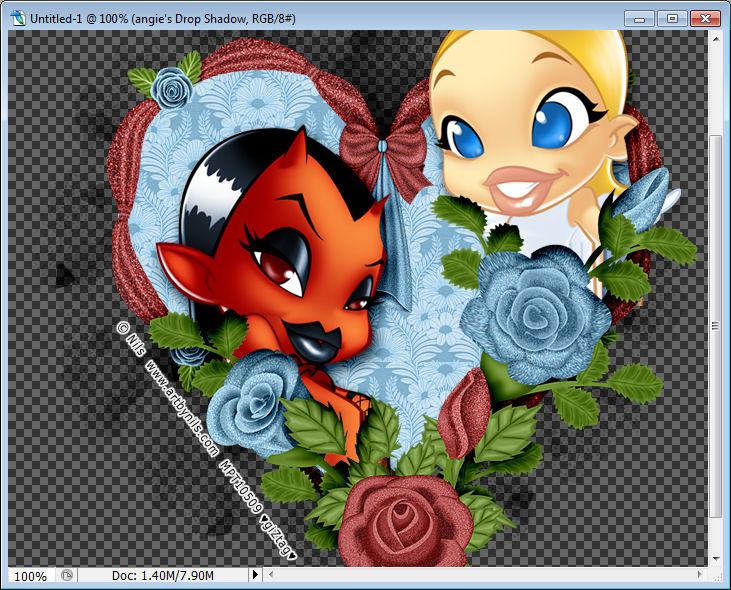
Choose the option that says Create Layers. This will put your shadow on a layer below your tube.

CTRL + Click on the frame's thumbnail. Now erase the parts of this new layer that are over the leaves.
Select > Deselect.
Now to add the frame's shadow... (another tough part lol)
Right click your frame layer and choose Blending Options. Add a drop shadow of your choice.
But something is wrong... the shadow doesn't go onto the tube layer...
SOooooo we fix that by creating the layers again. Right click the icon on the frame layer that represents the layer styles. Choose Create Layer again.
Duplicate this shadow.
Move it above your tube layer on the layers pallet and right click it. Choose Create Clipping Mask.
Now just erase the portions of the shadow that are over the faces and other places it shouldn't be.
Before:
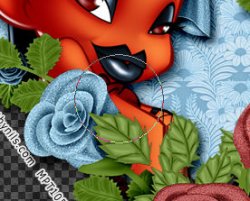
After:
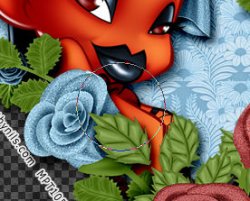
Select your topmost layer and open wordart of choice. I chose CrazyCarita's blog freebie wordart. I thought it fit nicely

Since this is in .psp format, you will need to open Paint Shop Pro and convert it to a .psd file. Simply open it and save it again in .psd format.
Move your wordart onto your canvas and add a drop shadow of choice.
---
(this step is optional)
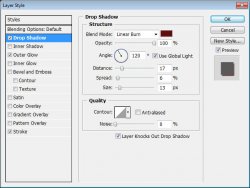
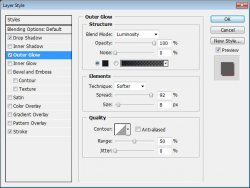
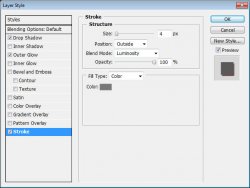
Now grab your type tool and type out "forever" or "always" underneath it.
Apply these layer styles:
---
Now add a name or snag saying to the tag.
Go to Edit > Transform > Rotate and rotate it to fit alongside your heart. (use my tag as a guide)
Apply the same layer style as mentioned above.
That is it! Save your tag as a .png or .jpg and off you go
And this is my result:

I hope you have enjoyed this tutorial! I would love to see your results.
Hosted by permission. Please link to this tutorial instead of redistributing it or its supplies.
Back to all tutorials